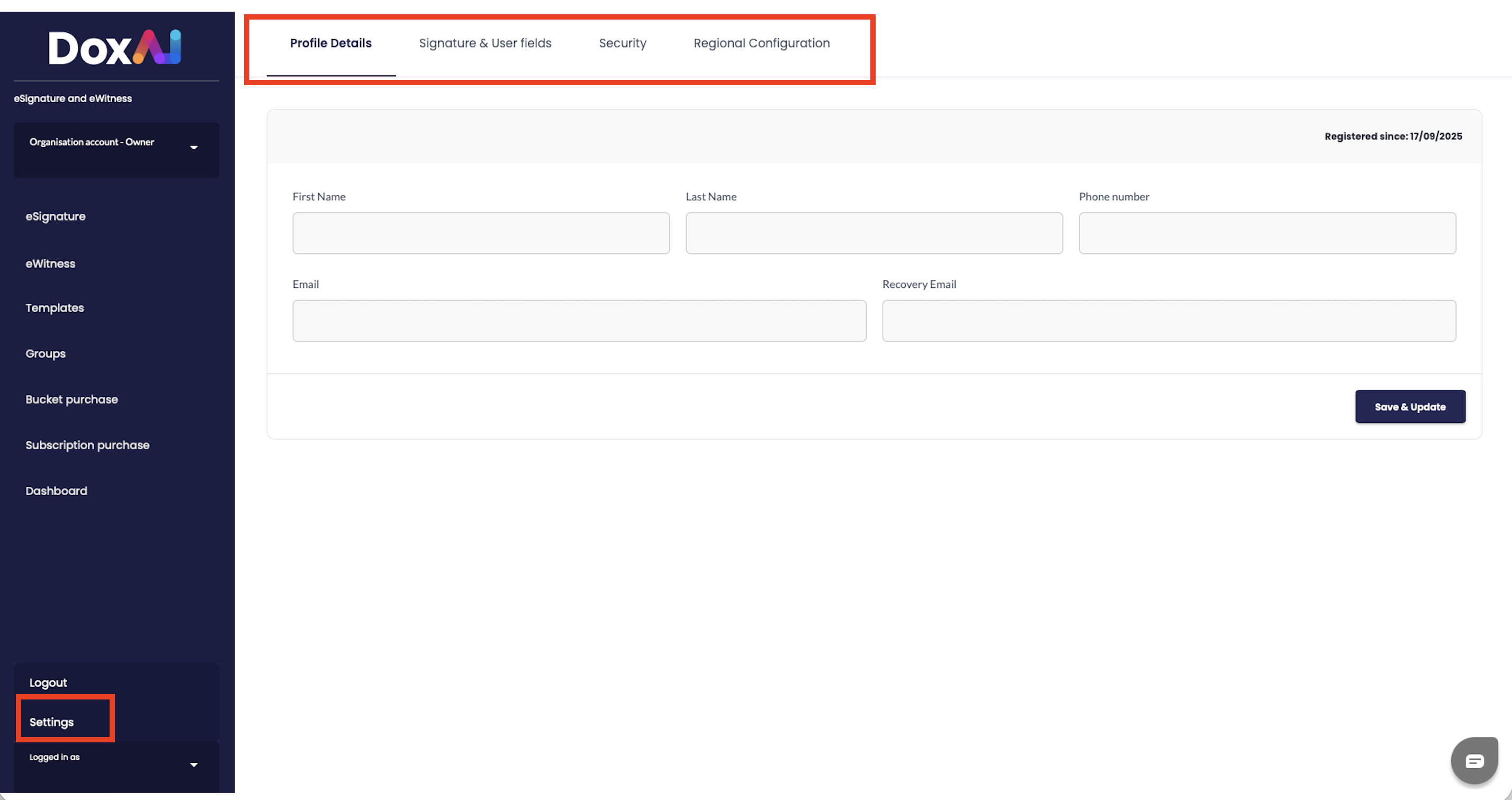
The Settings section allows users to view and update key account and configuration details related to eSignature workflows. From this panel, users can manage various aspects of their account through the following tabs:
Available Settings:
Profile Details – Edit personal and organisational information such as name, contact details, and email address.
Signature & User Fields – Configure user-specific signature preferences and define reusable fields for eSignature requests.
Security – Manage security settings, including password preferences and access controls to ensure secure document handling.
Regional Configuration – Set regional preferences such as time zone, date/time format, and localisation settings.
1. Profile Details
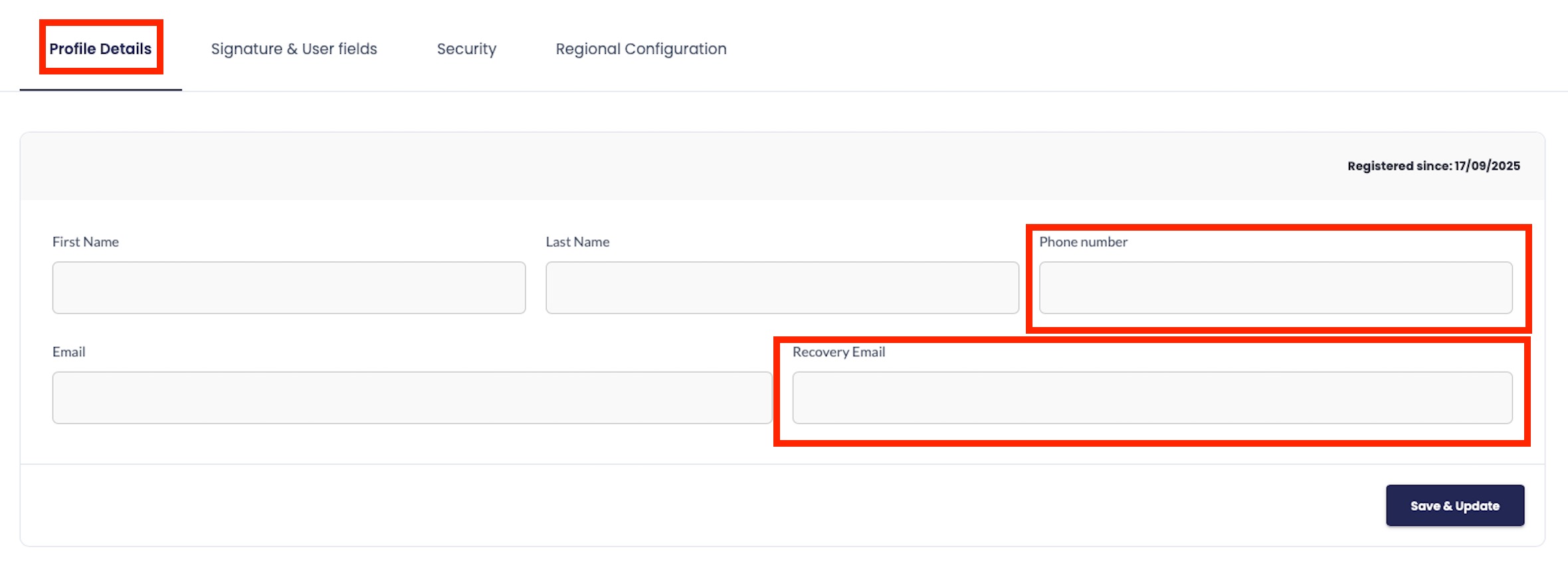
In this section, the user can update personal information related to their account.
Editable Fields:
Phone Number – Add or update your contact number.
Recovery Email – Set a backup email address for account recovery purposes.
Once changes are made, click “Save & Update” to apply them.
2. Signature Fields
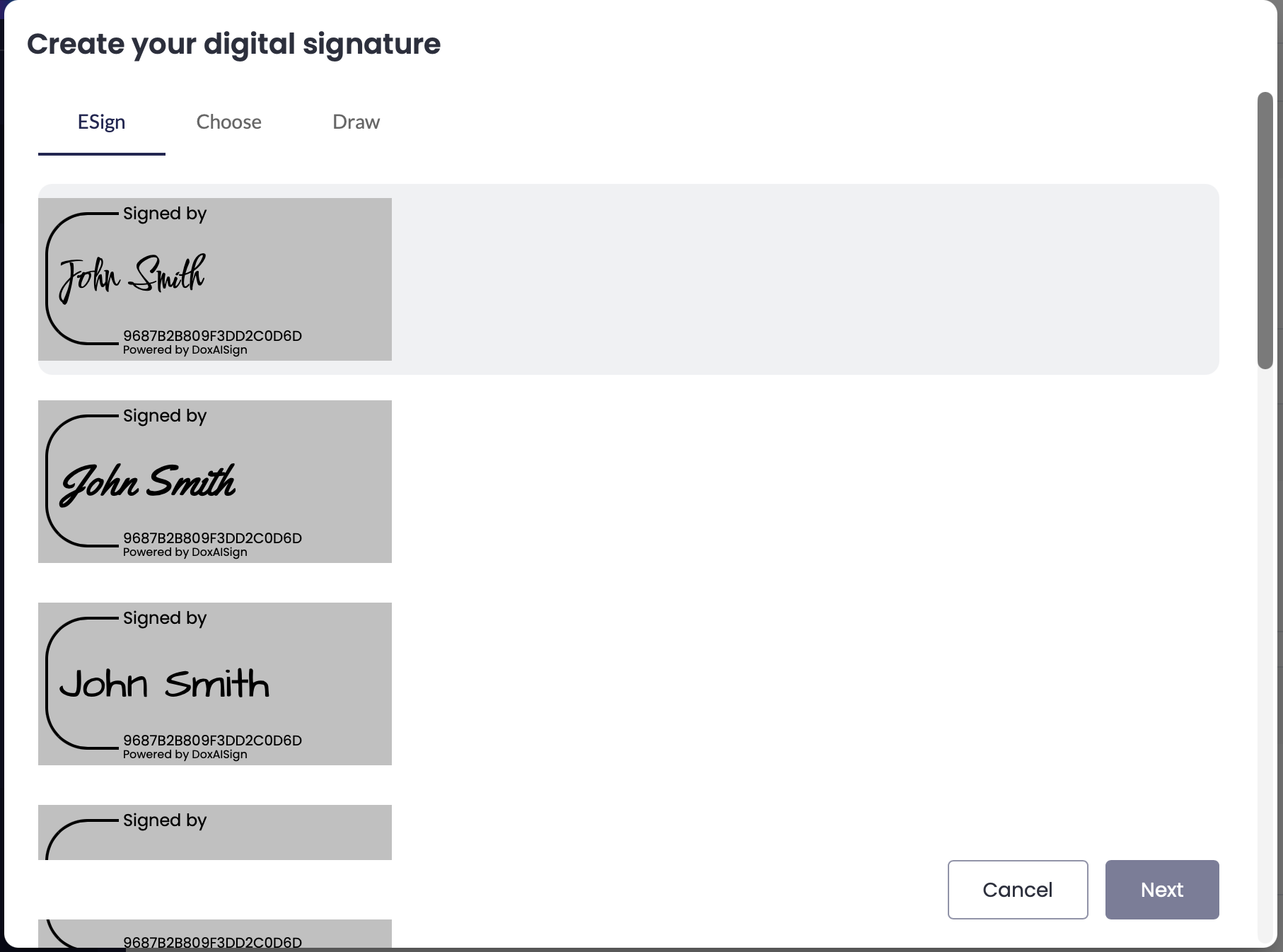
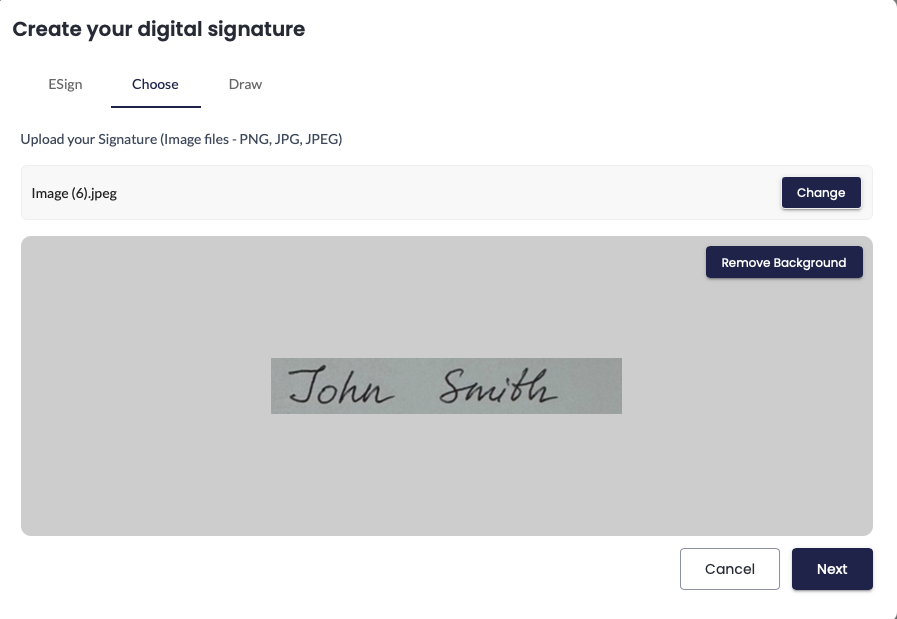
This section allows users to create or update their digital signature used in eSignature requests.
Functionality:
Edit Signature – Click “Change Signature” to open the editor, where you can:
Select from preset styles
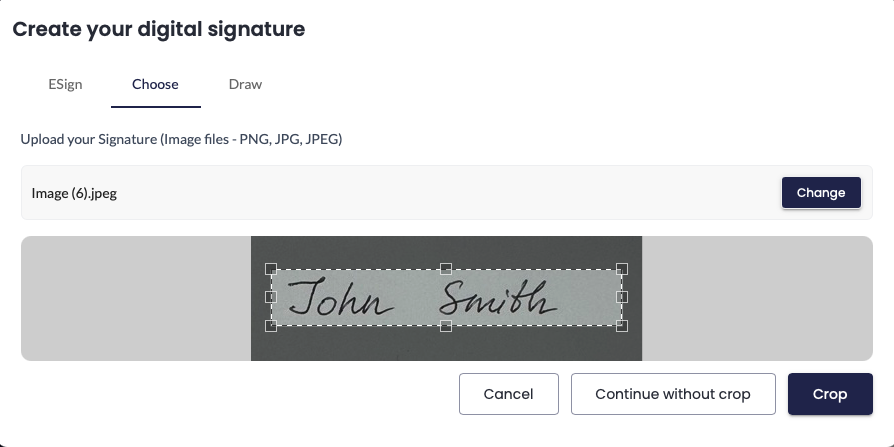
Upload a signature image file
Draw your own signature manually
Once finalised, click “Save” to apply the new signature.
For an uploaded signature, user can Crop it as needed and make the background transparent by clicking "Remove Background."
3. Security Settings
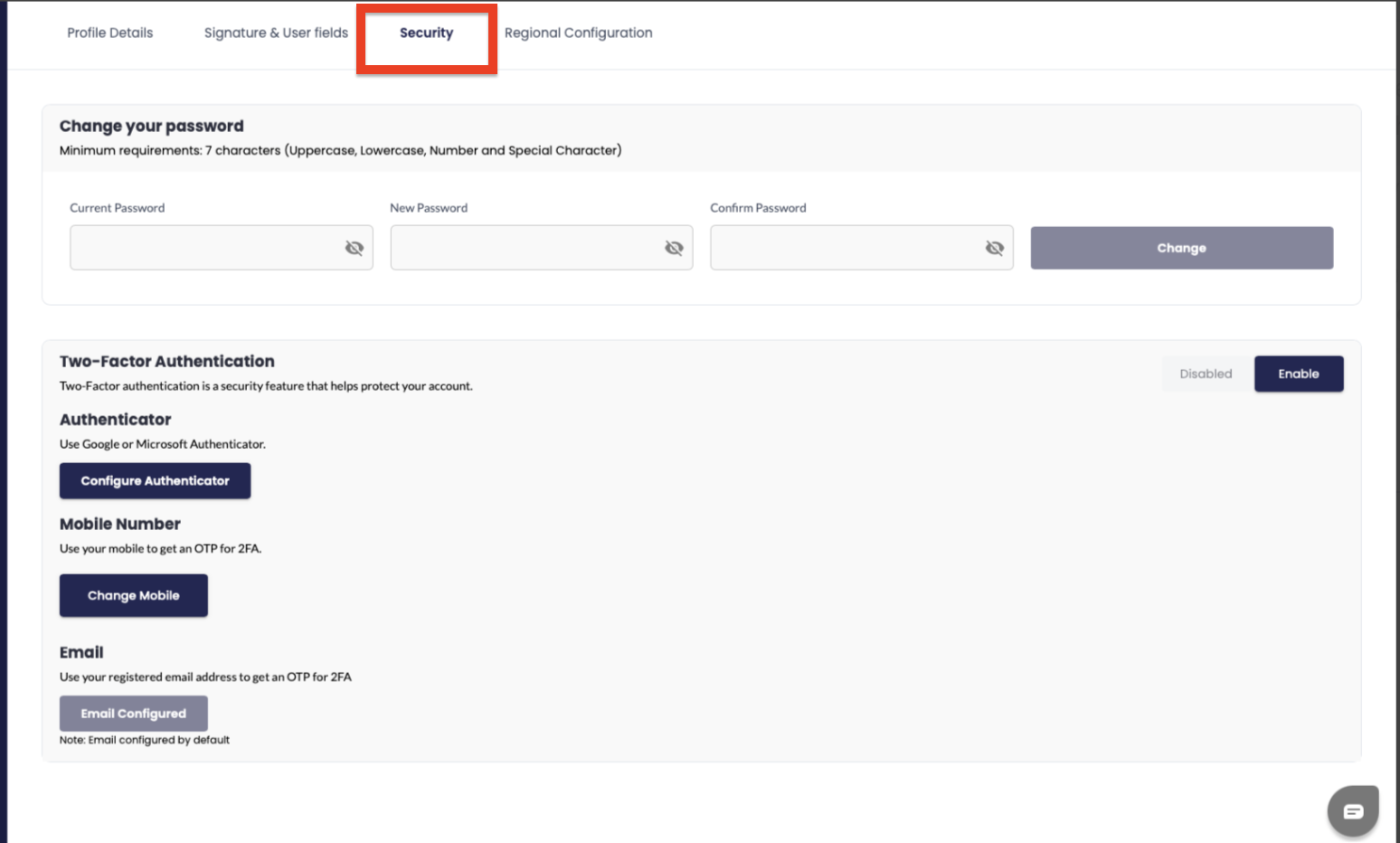
This section allows users to manage account security by updating passwords and configuring two-factor authentication (2FA).
Available Options:
Change Password
Update your login credentials by entering the current password and setting a new one.
Two-Factor Authentication (2FA)
Add an extra layer of protection to your account by enabling 2FA using one of the following methods:
Authenticator App – Configure Google or Microsoft Authenticator
Mobile Number – Receive OTPs via SMS
Email – Use your registered email address to receive OTPs
4. Regional Configuration
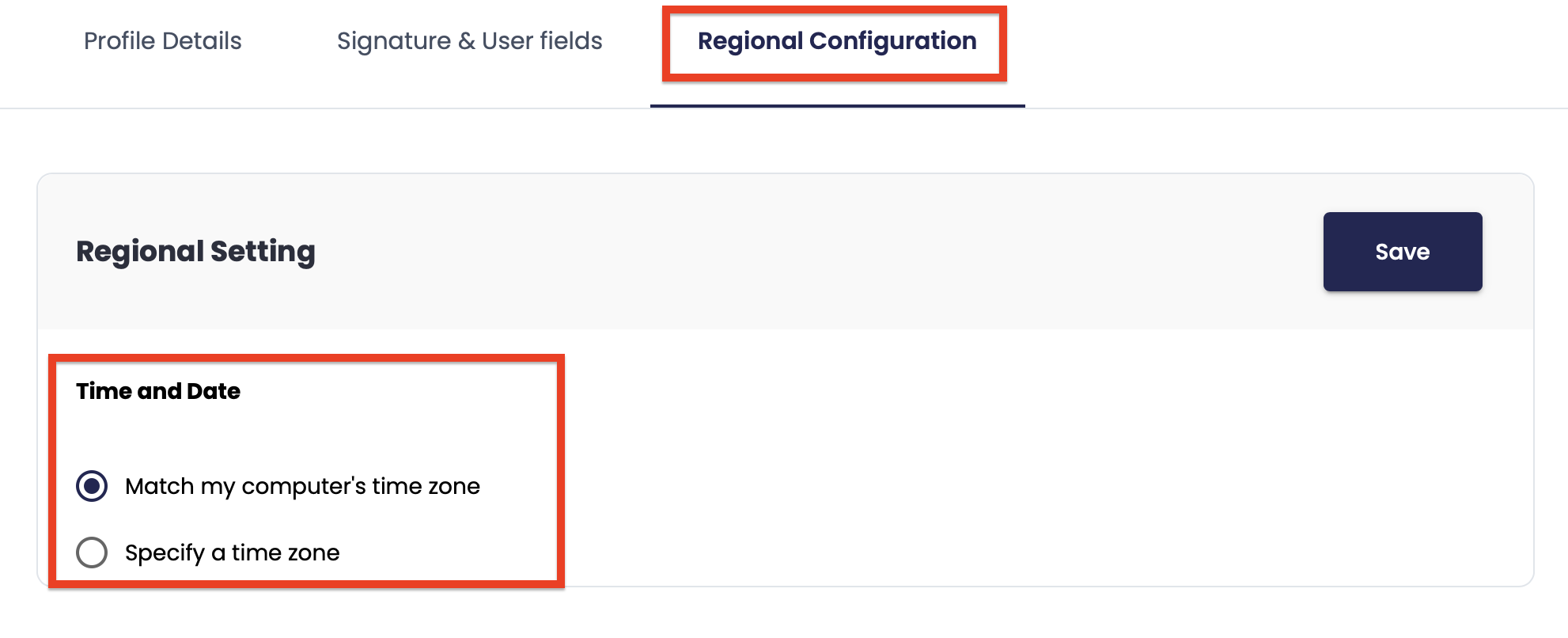
The Regional Configuration section allows users to manage their time zone settings for accurate date and time tracking within the platform.
Available Options:
Match my computer’s time zone
Automatically syncs the application’s time zone with your device’s system time.
Specify a time zone
Manually select a preferred time zone from the available list.
Was this article helpful?
That’s Great!
Thank you for your feedback
Sorry! We couldn't be helpful
Thank you for your feedback
Feedback sent
We appreciate your effort and will try to fix the article