The Group Creation feature allows users to create custom groups of individuals who frequently sign documents together. Once created, these groups can be easily assigned to eSignature requests, helping to streamline the process by eliminating the need to add each signer individually for recurring workflows.
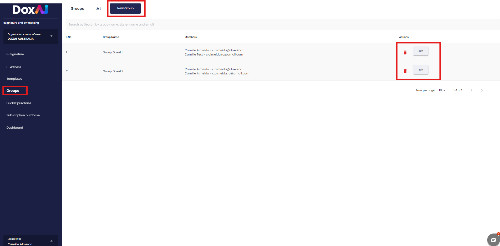
Creating a New Group
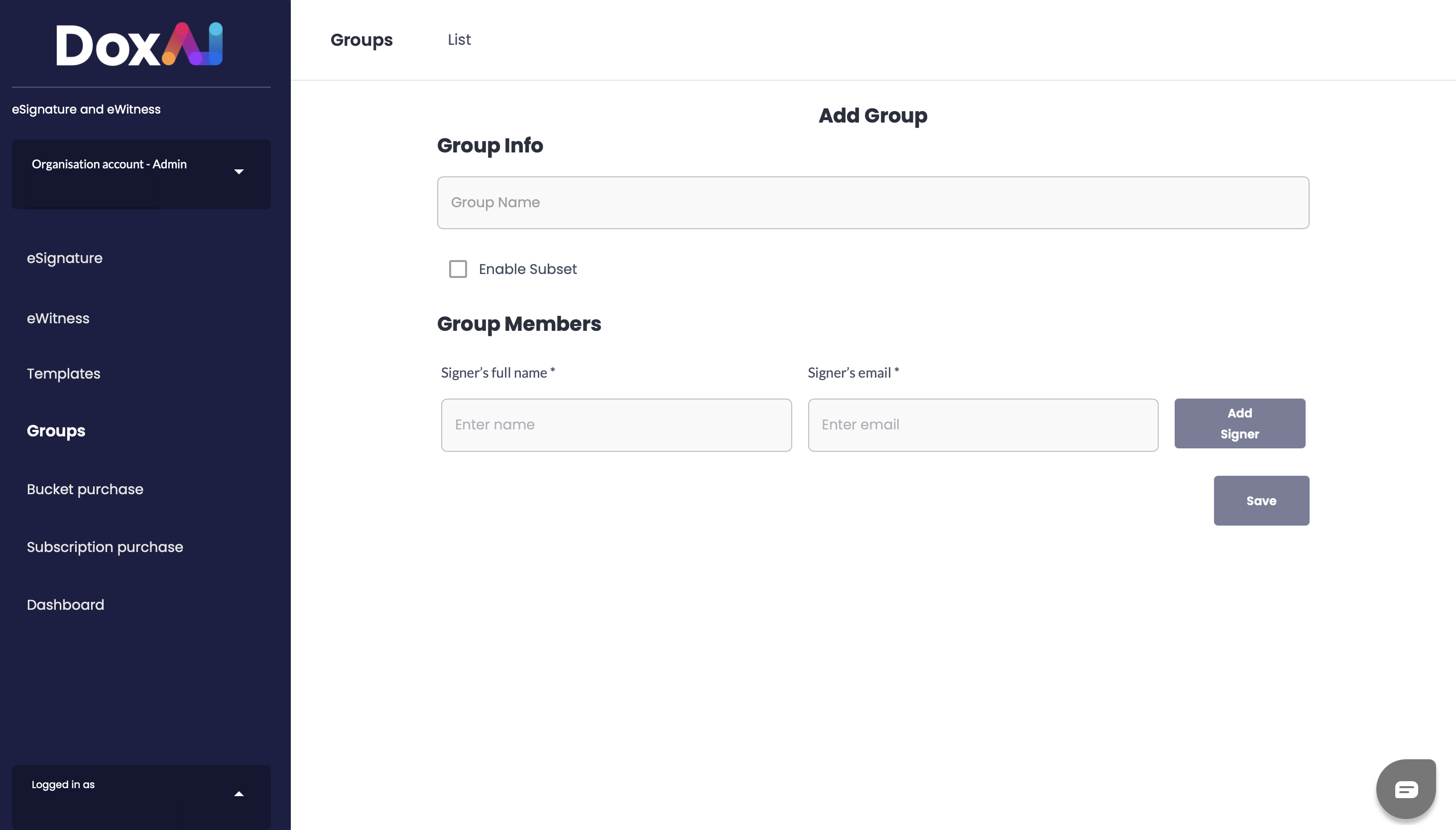
To create a group within the eSignature dashboard:
Enter a Group Name – This is a required field and must be filled in to proceed.
Enable Subset – This setting allows to specify the number of unique signers required within a group. If enabled, the Subset Count field becomes mandatory and must be filled in before saving the group
Add Group Members – For each member, provide the full name and email address, then click “Add Signer” to include them in the group.
Once all members are added, click “Save” to finalise the group.
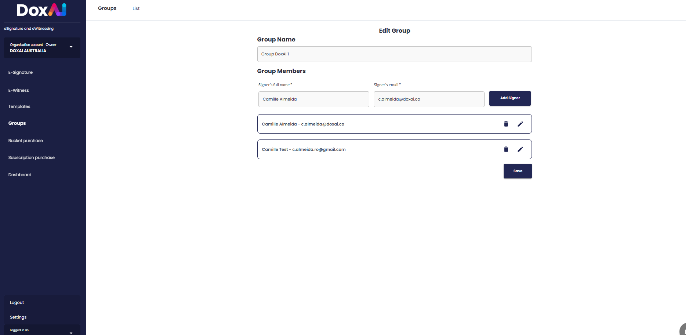
Editing a Group
To edit an existing group:
Navigate to the Groups section in the eSignature dashboard.
Select the group you want to update.
You can:
Change the Group Name
Add New Members by entering their full name and email address, then clicking “Add Signer”
Edit or Remove Existing Members using the edit or delete icons next to each member
Once all changes are made, click “Save” to update the group.
Was this article helpful?
That’s Great!
Thank you for your feedback
Sorry! We couldn't be helpful
Thank you for your feedback
Feedback sent
We appreciate your effort and will try to fix the article