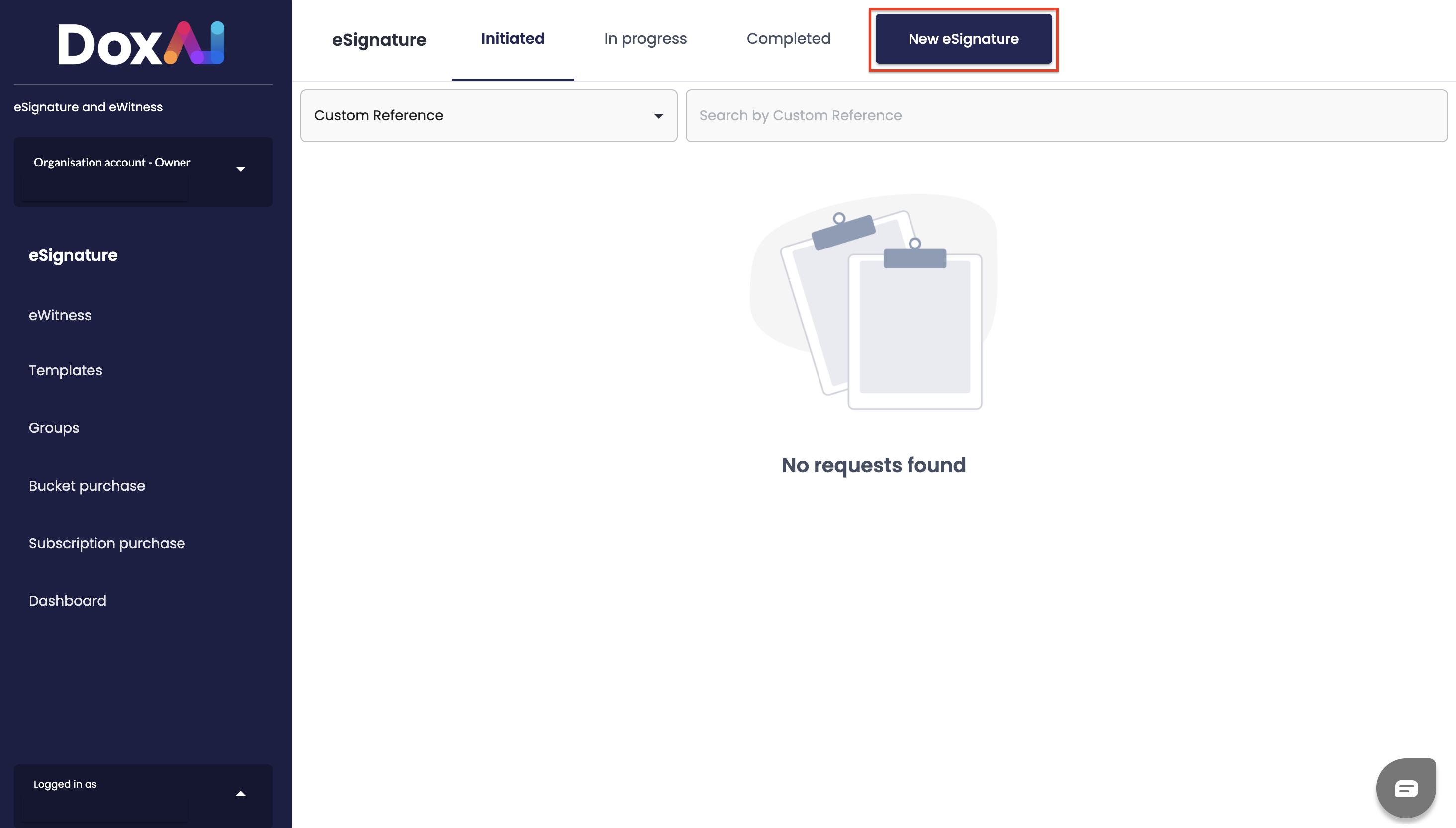
From the eSignature dashboard, the user can initiate a new eSignature request by clicking on “New E-Signature” and the user will be redirected to a new screen to start creating a new eSignature.
Document Upload Instructions & Requirements
The user would be re-directed to the document upload screen, where the user can upload the necessary documents.
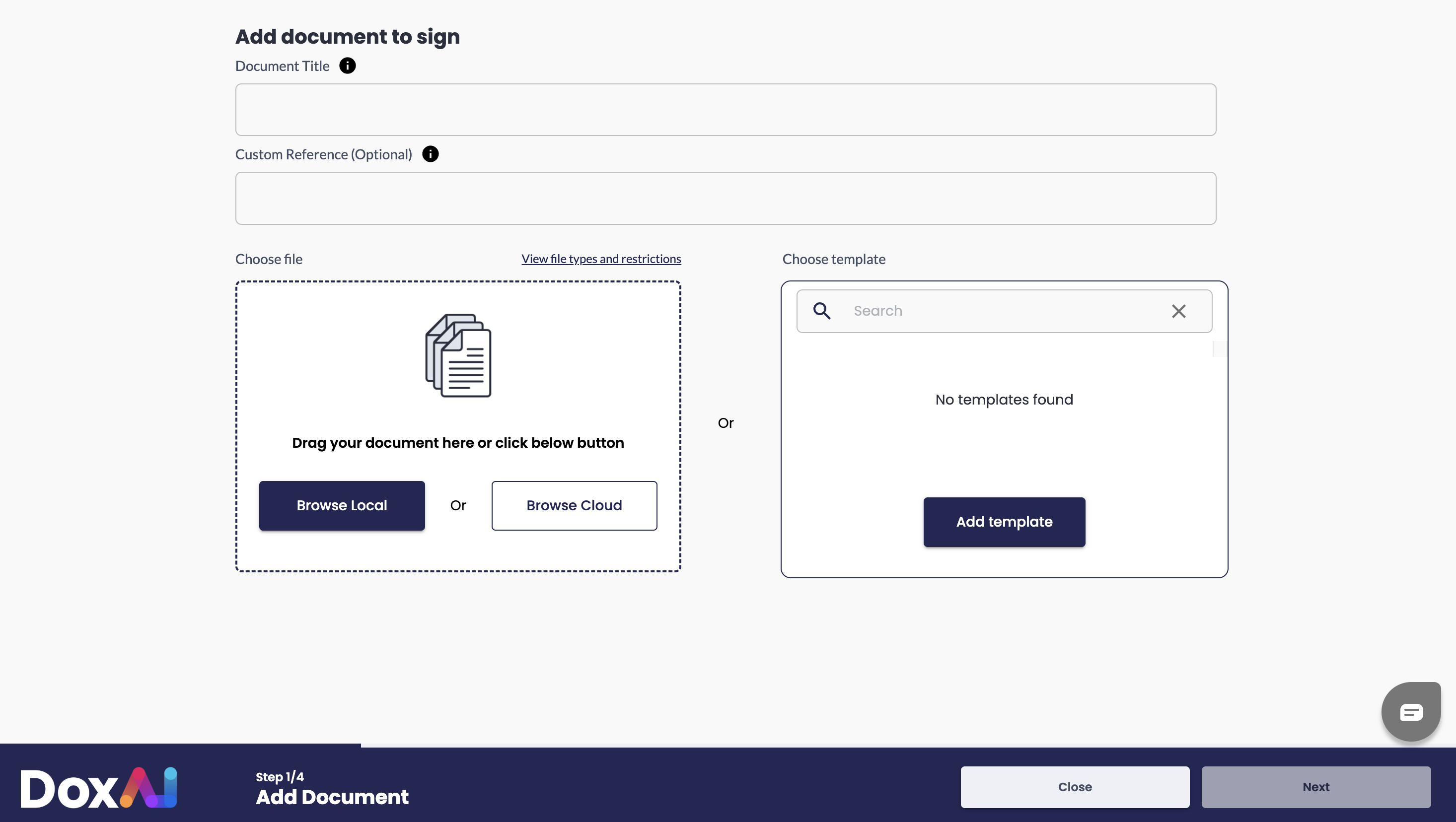
To proceed, the user is required to complete the following steps:
Document title (optional)
Custom reference (optional): this will be the reference to all email subject for this eSignature request
Choose file (allowed file: .doc, .docx, .pdf, .txt, .jpg, .jpeg, .png, .ppt, .pptx, .bmp, .svg allowed max file size is 50 MB for PDF, 10MB for other files; allowed max page count is 2000)
Browse local or cloud
Upload one or multiple documents
or
Choose template: How to create a template (Refer to – Template Creation)
Once document selected click “Next”
Was this article helpful?
That’s Great!
Thank you for your feedback
Sorry! We couldn't be helpful
Thank you for your feedback
Feedback sent
We appreciate your effort and will try to fix the article