The Review and Send step is the final stage before sending your eSignature request. It allows you to double-check all details with respect to the eSignature request. Once everything looks correct, you can send the request to all recipients.
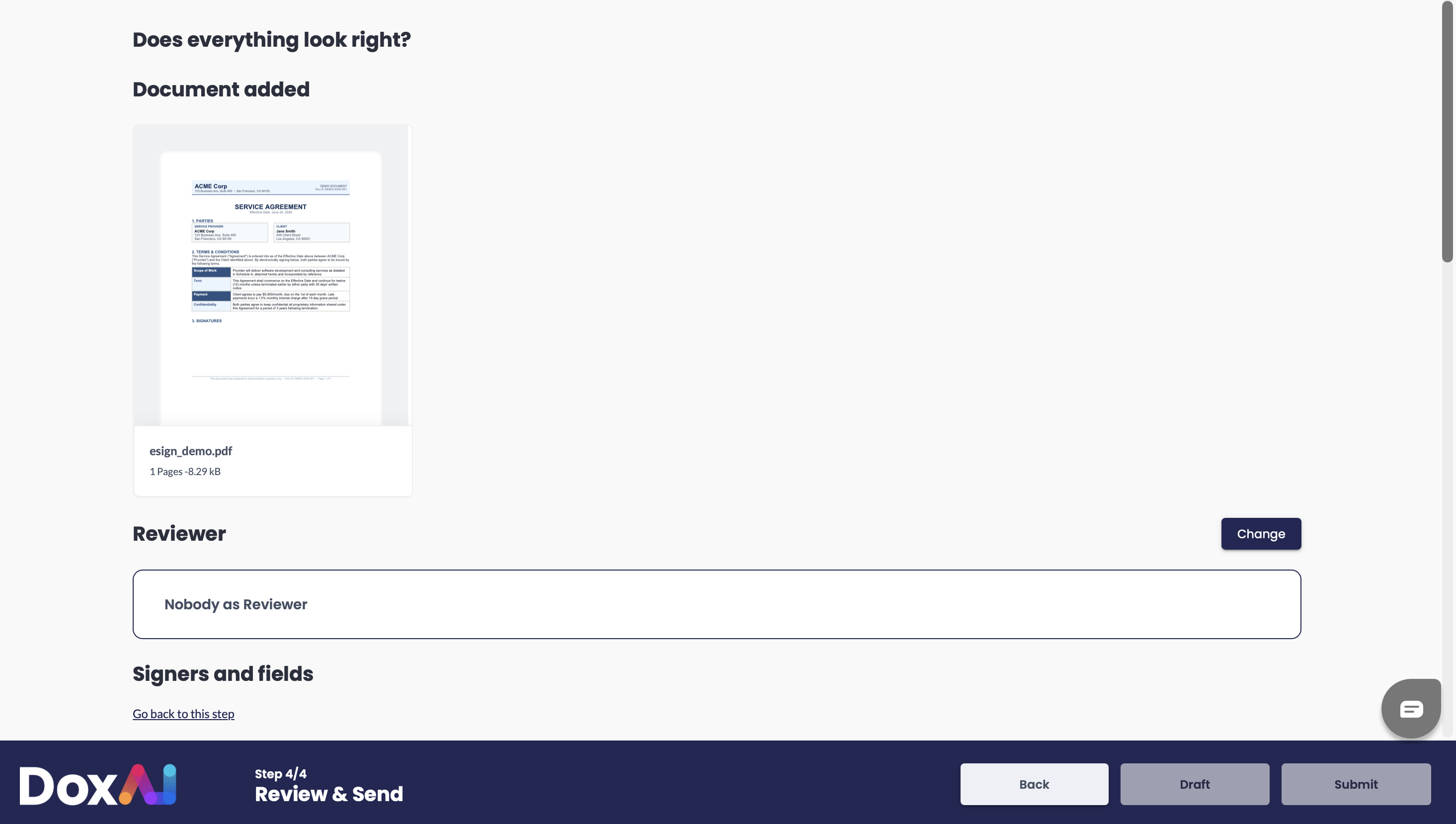
The “Review and Send” screen comes with the following functions:
Reviewer: This functionality allows the requester to modify or assign the eSignature reviewer for the document.

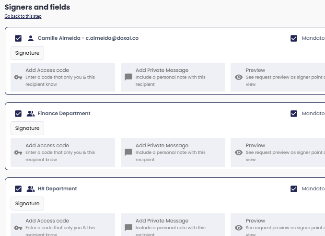
Signers and Fields: This section displays all signers and groups included in the eSignature request, along with their assigned roles and settings. For each signer or group, the requester can:
Mark them as Mandatory or optional
Assign a Signature field
Add an Access Code for secure signing
Include a Private Message
Use the Preview option to view the document from the signer’s perspective
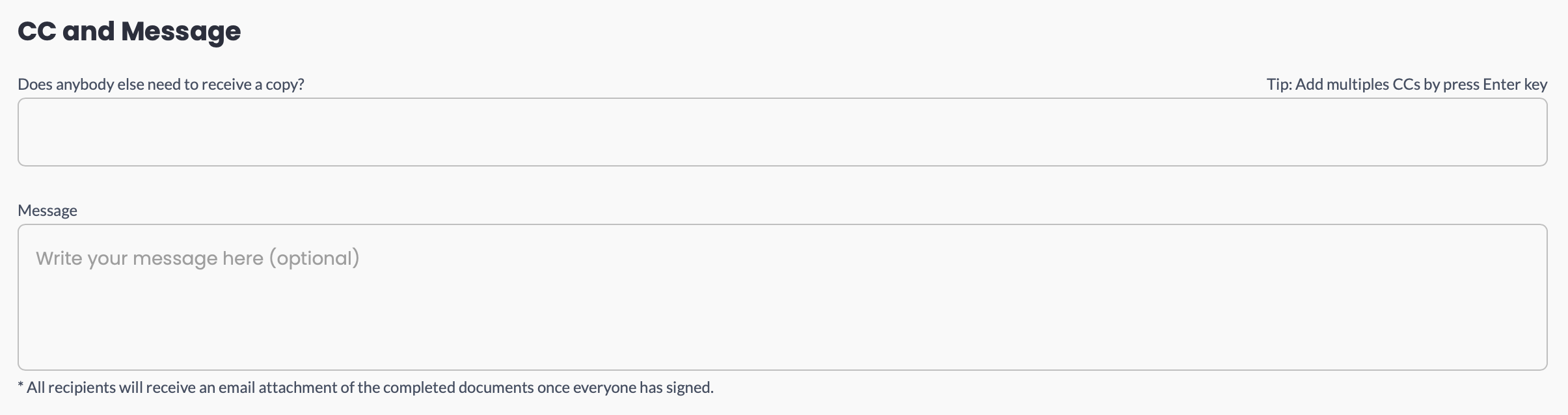
CC and Message: This section allows the requester to:
CC Recipients (Optional): Add individuals who should receive a copy of the completed document via email. You can add multiple CCs by pressing the Enter key after each email address.
Message (Optional): Write a custom message that will be included in the email notification to all recipients.
Reminder: This option enables automatic notifications to prompt signers who haven’t completed their actions, helping ensure timely document completion. The requester can choose between 1 to 7 days.

Restrict Fill and Review: This option allows the requester to limit which users can fill or review the document, adding an extra layer of control over access and editing.

Time Zone: This option allows the requester to select the appropriate time zone for the eSignature request, ensuring all timestamps (such as signing date and time) are recorded accurately. By default, the time zone is set to match the system’s local time settings.

Schedule Request: This feature allows the requester to set a specific date and time for when the eSignature request will be sent. This is useful for planning ahead or coordinating with signers across different time zones.

Expiry Date: This feature allows the requester to set a specific date and time after which the eSignature request will no longer be valid. To activate this setting, the requester must check the box confirming agreement to expire the request on the selected date and time.

Was this article helpful?
That’s Great!
Thank you for your feedback
Sorry! We couldn't be helpful
Thank you for your feedback
Feedback sent
We appreciate your effort and will try to fix the article