To complete an eSignature request, the user has the following options:
The requester can complete the eSignature from the platform.
The assigned signatories can complete the eSignature from the platform.
From the link provided in the email.
The Requester can complete the eSignature from the platform. (Only applicable for “Just Me”)
If the initiator is part of the eSignature Request, the user can proceed to sign the document right away after raising the request.
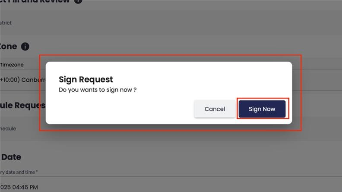
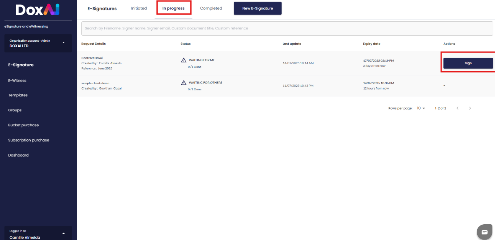
Else the user can navigate to “in-progress” tab and can proceed with the eSignature.
The assigned signatories can complete the eSignature request by signing into their account in the platform (The user must have an account with DOXAI)
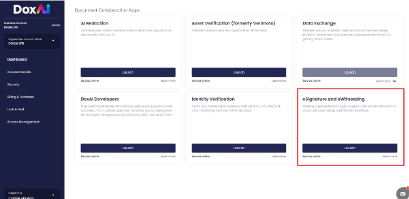
The signer can login to the DOXAI platform https://accounts.doxai.co/login and select their “Personal Account” and click on the “Launch” button to be directed to eSignature Dashboard. This will automatically redirect to a new screen.
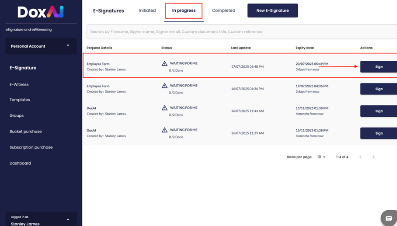
The signer can navigate to “in-progress” tab and open the relevant eSignature and proceed to complete the signing process by clicking on “Sign” button.
The user can complete the eSignature via the email received in their inbox.
The user can also complete the eSignature request by clicking the “Click here to Sign” button in the email.
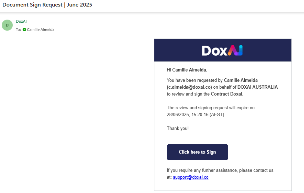
Starting the eSignature Workflow
The user can choose any of the above-mentioned methods to initiate with the signing, in both methods the user will be re-directed to a new page, where the user will have to accept to the terms and conditions.
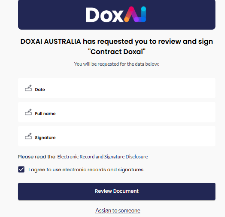
In the above the screen, the signer has the following actions:
Review Document: Clicking this button takes the signer to the document viewer, where they can review the content and complete the signing process.
Assign to Someone Else: If the signer is not the appropriate person to complete the request, they can choose this option. The signer will be asked to enter the full name and email address of the new assignee. Once submitted, the eSignature request is transferred to the assigned person, who will receive an email notification with a link to complete the request.
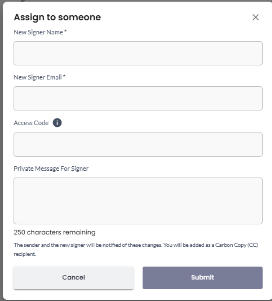
Note: “Assign to someone” functionality is not applicable for Group Signing.
After accepting the terms and conditions, the signer will be directed to the review screen, where they can place their signature in the assigned placeholder. Once all required fields are completed, the signer can click “Submit” to finalise the process.
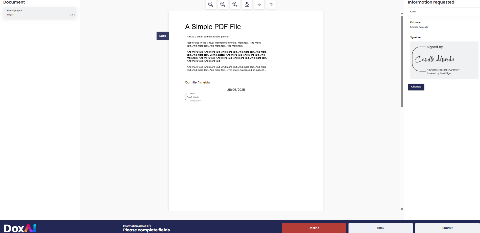
After submitting the completed fields, the signer is redirected to the eSignature completion screen, confirming that the signing process has been successfully finished.

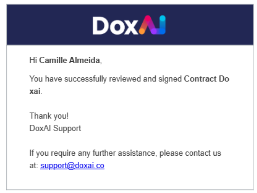
The signer receives a confirmation email once the signature process is successfully completed.
Was this article helpful?
That’s Great!
Thank you for your feedback
Sorry! We couldn't be helpful
Thank you for your feedback
Feedback sent
We appreciate your effort and will try to fix the article