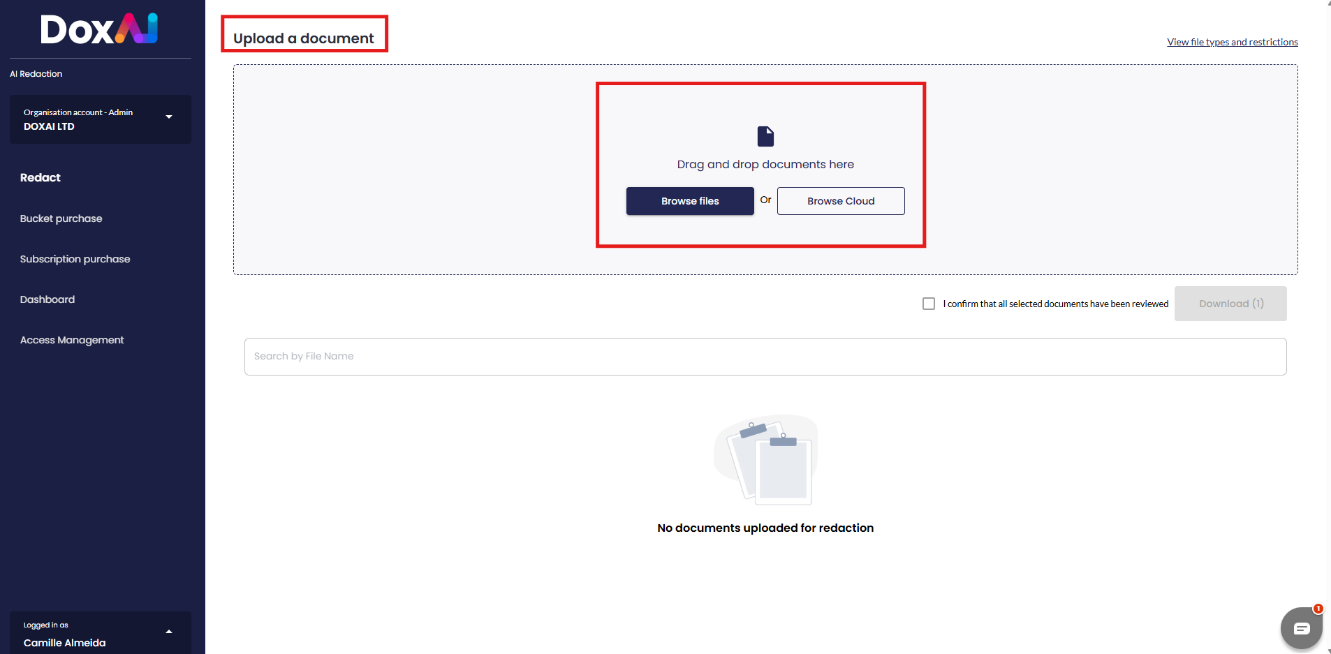
1. The user would be re-directed to the document upload screen, where the user can upload the necessary documents. From the AI Redaction dashboard, the user can initiate the redaction of document by uploading a document using the following options:
- Drag and drop document
- Browse files from Desktop
- Browser from Cloud
Please note:
- Allowed files .png, .jpg, .jpeg, .pdf, .docx, .doc
- Allowed file size 30MB for PDF, 150 MB for Doc and 4MB for images
- Allowed files count is 10
- Max page count per PDF is 200
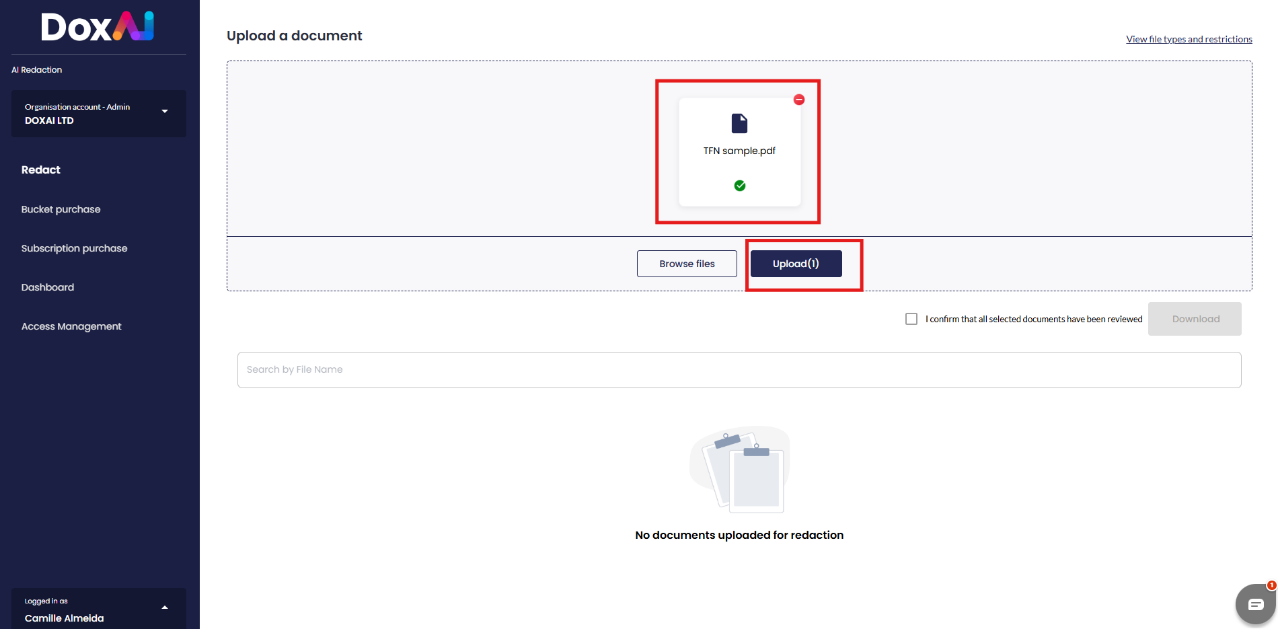
2. Once the document the user selects the document he needs to click on “upload”.
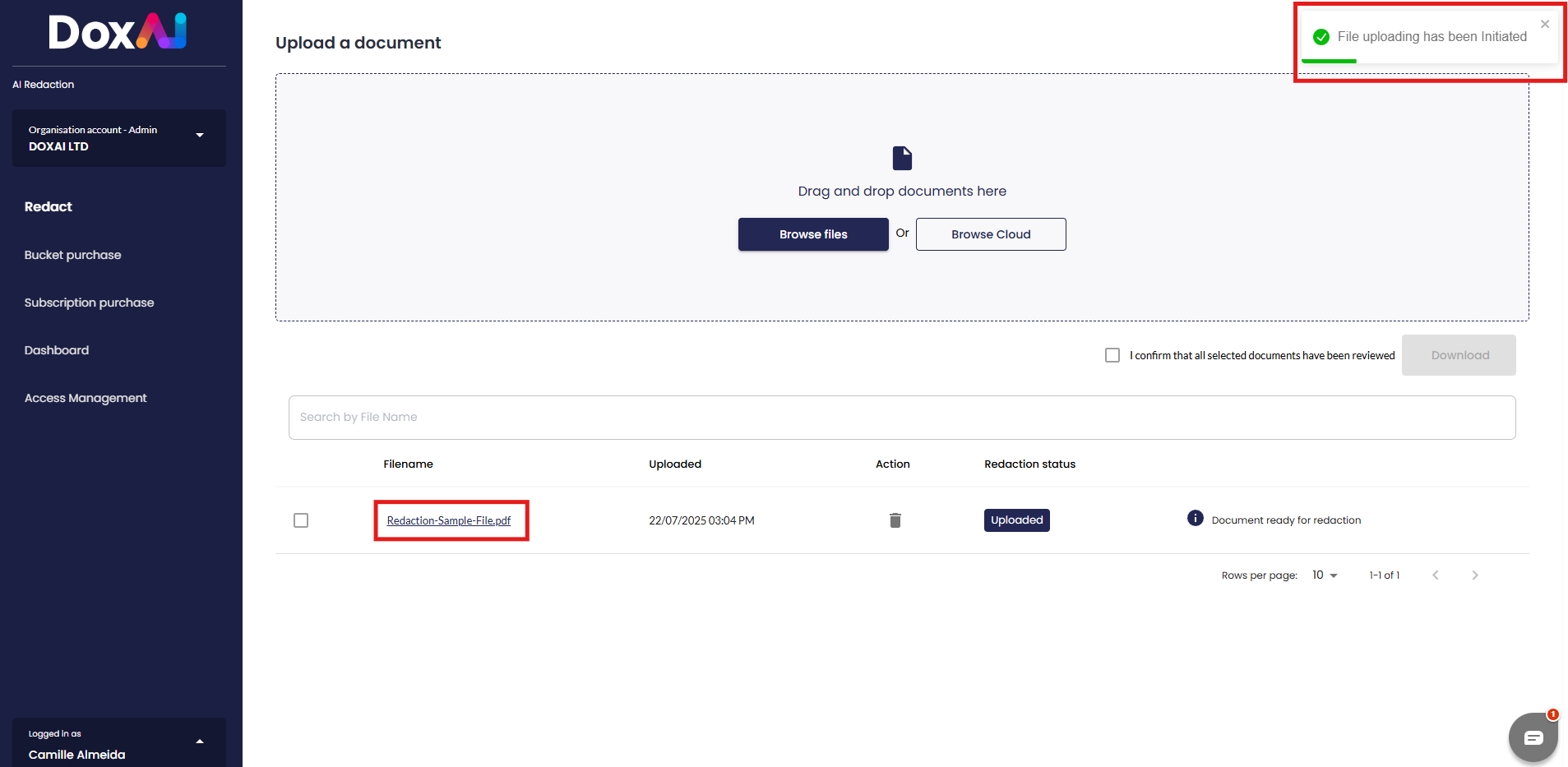
3. Once the user has uploaded the file, a message will appear informing the user that the file upload has been initiated. To begin redacting the document, the user can click on the file name of the document they want to work on.
Was this article helpful?
That’s Great!
Thank you for your feedback
Sorry! We couldn't be helpful
Thank you for your feedback
Feedback sent
We appreciate your effort and will try to fix the article