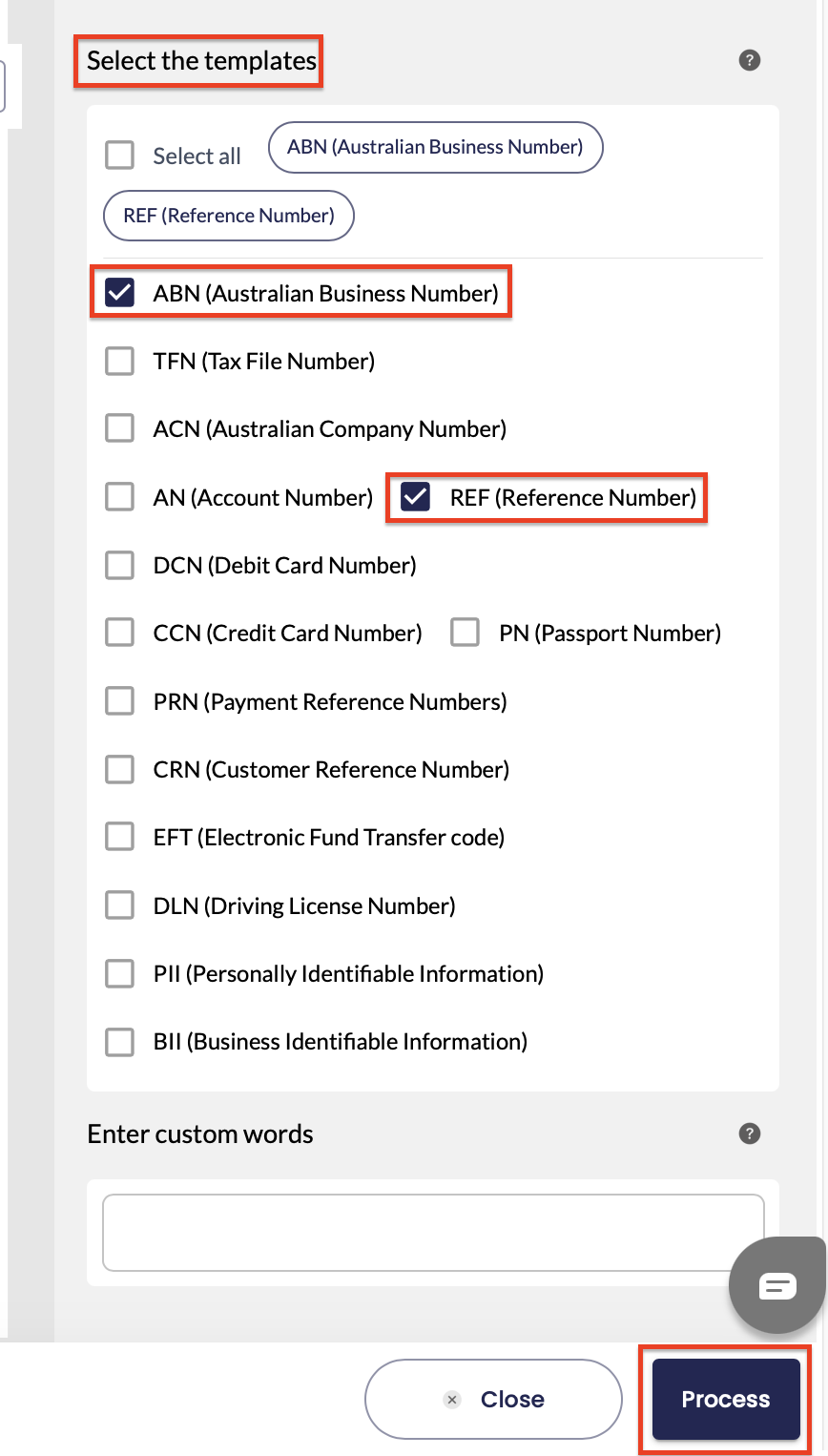
- In this scenario, the user selects to redact the ABN (Australian Business Number) and REF (Reference Number) by simply selecting the corresponding boxes.
- User needs to click on “Process” to start the redaction
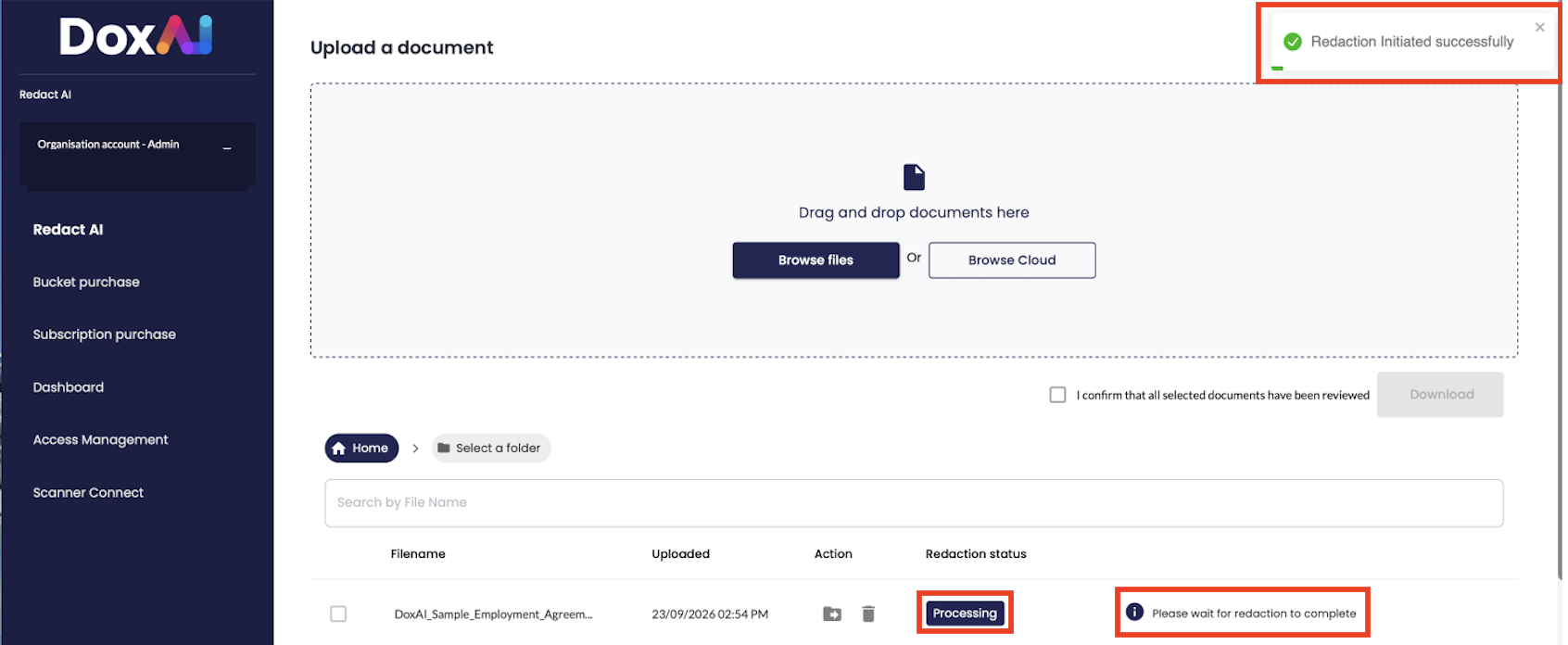
- After clicking 'Process', the user is directed to the AI redaction dashboard. A message will appear in the top-right corner to inform the user that redaction has started successfully. At this stage, the redaction status will be shown as 'Processing' until the redaction is complete
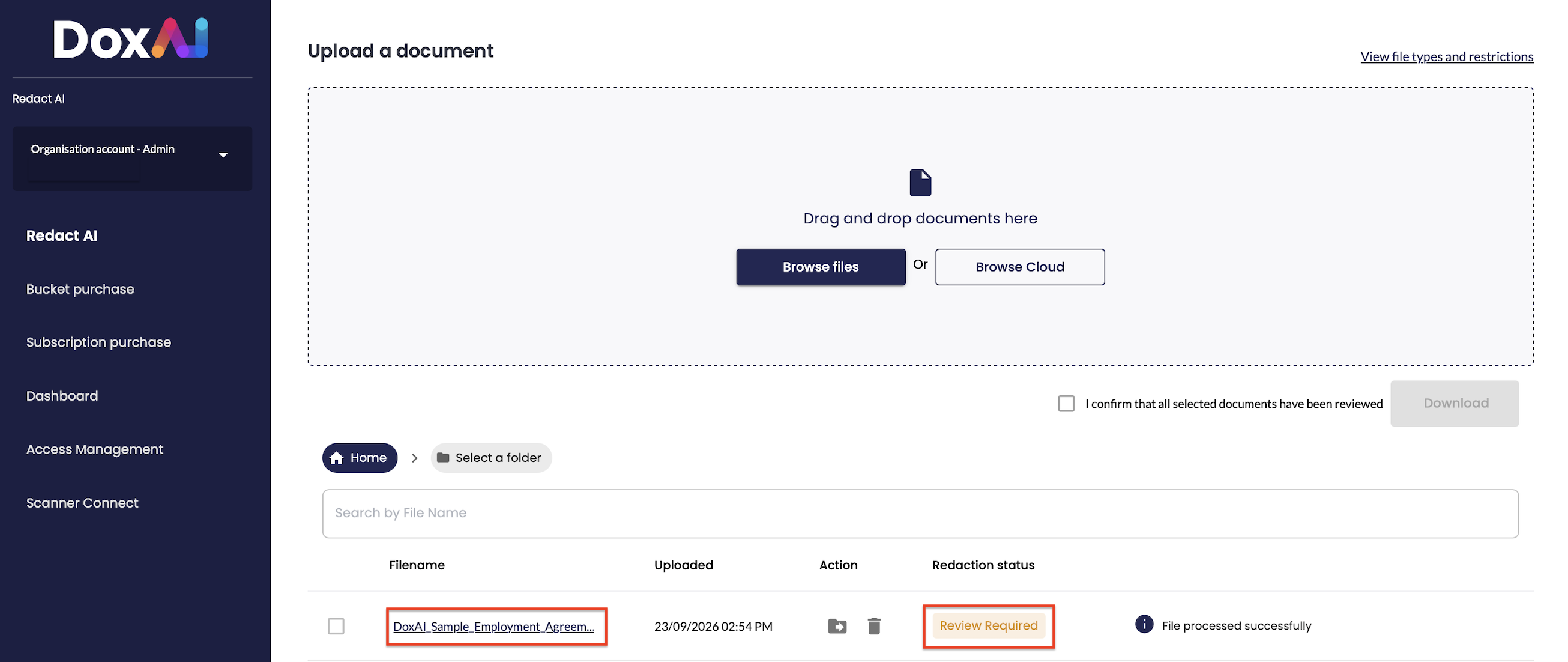
- Once redaction is complete, the status changes to 'Review Required'. The user can click the filename to view the results.
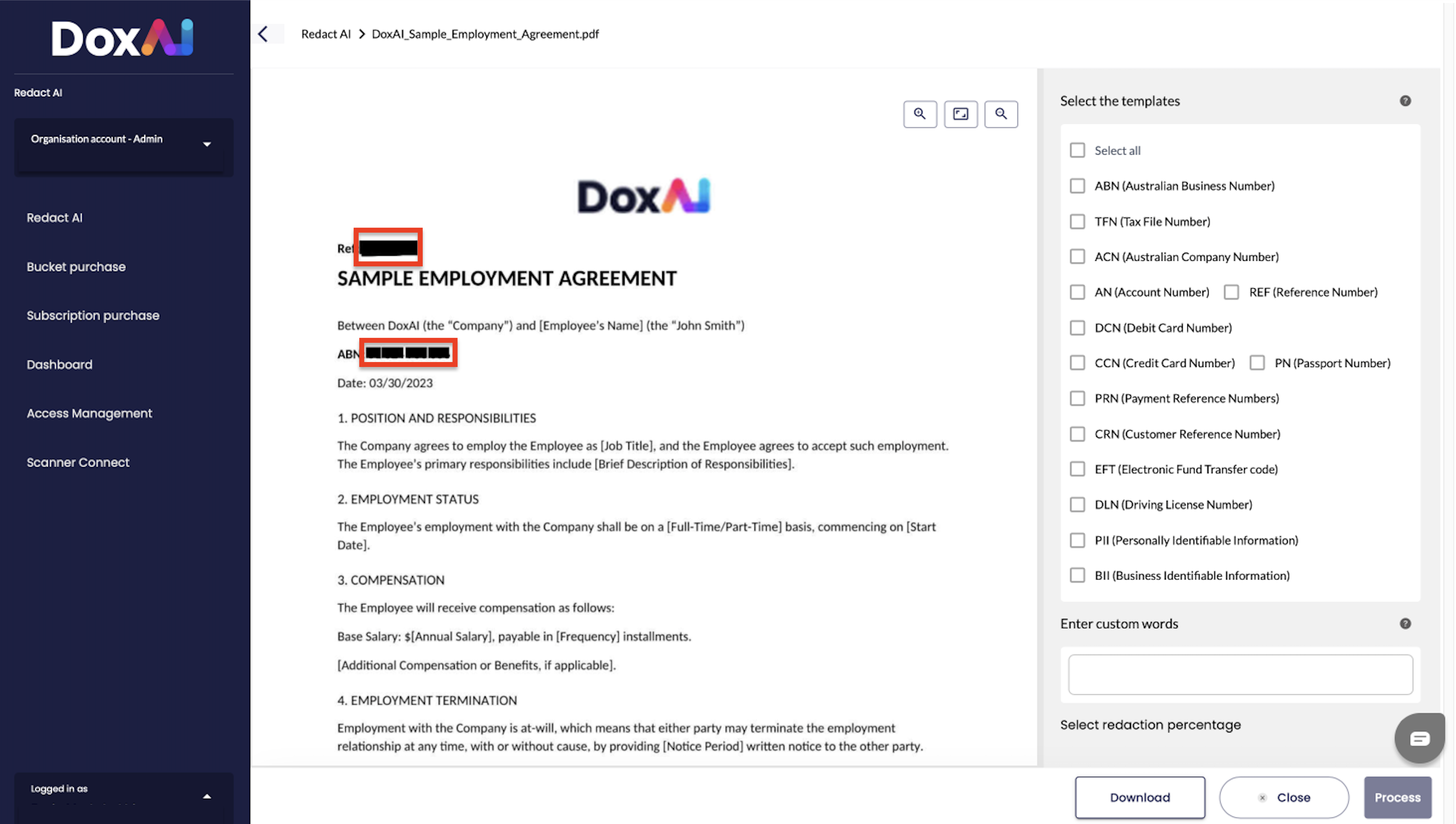
- The user is now directed to the AI Redaction service screen. In this scenario, the user chose to redact ABN (Australian Business Number) and REF (Reference Number); both have been successfully redacted.
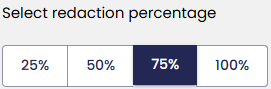
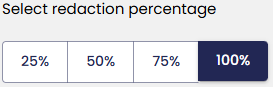
Option available only when using pre-defined template: “Select redaction percentage”
The user can select the redaction size as a percentage of the keyword to be redacted. The available options are: The options are:
- 25%
- 50%
- 75%
- 100%
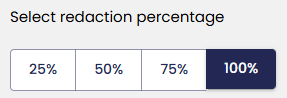
Please note by default, the redaction size is set to 100%. To customize this, the user must follow these steps:
- Select the template(s)
- Choose the redaction percentage by clicking on the percentage box
- Click 'Process'
In this scenario, the user wants to redact REF (Reference Number). Below are the results for each redaction percentage.
Percentage Redaction | Results |
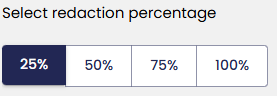 | 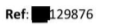 |
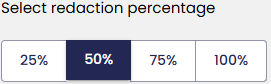 |  |
 |  |
 |  |
Was this article helpful?
That’s Great!
Thank you for your feedback
Sorry! We couldn't be helpful
Thank you for your feedback
Feedback sent
We appreciate your effort and will try to fix the article