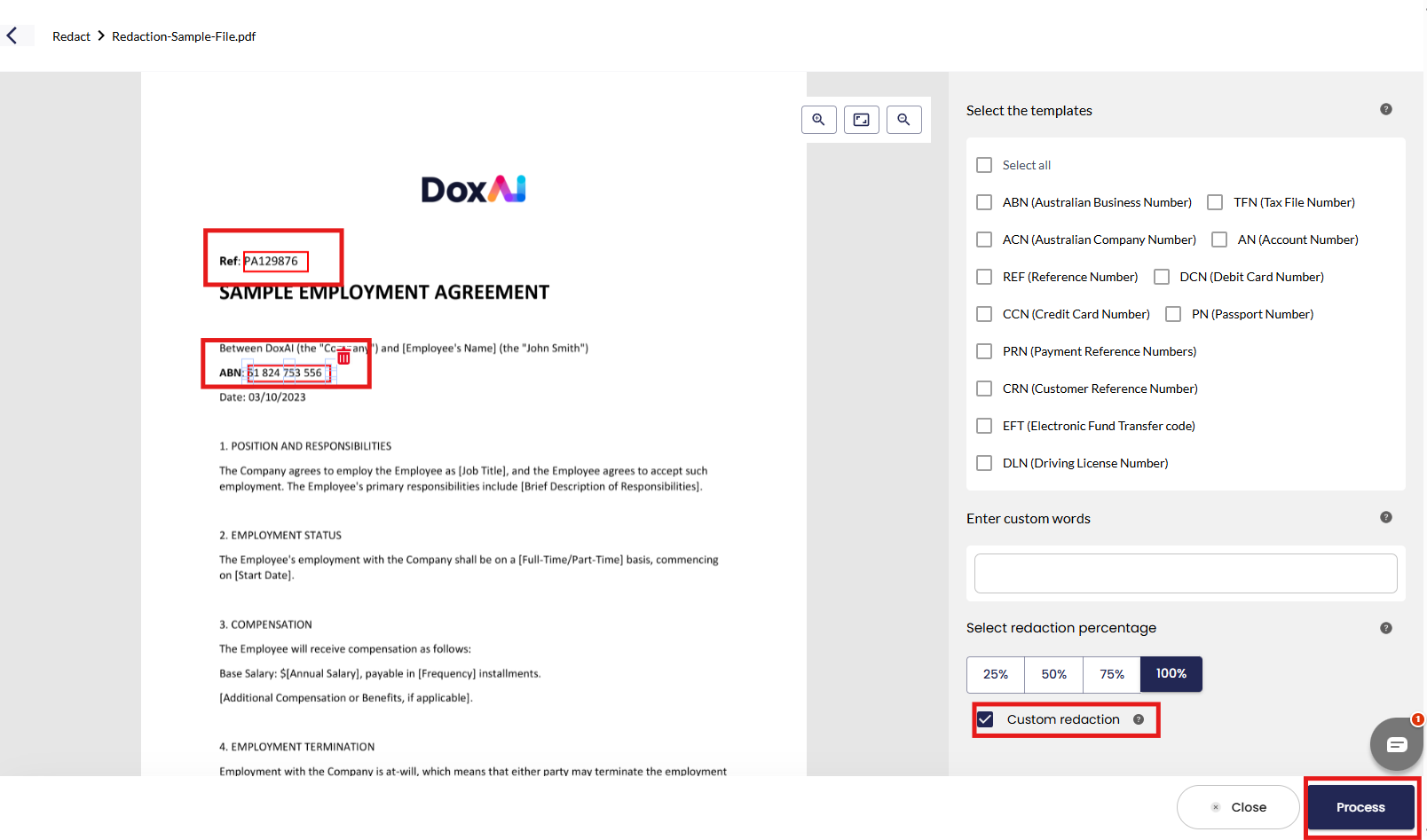
- In this scenario, the user can draw a custom redaction box anywhere on the document to redact specific information. In this example, the user wants to redact “PA129876” and “51 824 753 556.”
- The user needs to enable Custom Redaction by checking the corresponding box.
- The user then selects the information to be redacted by drawing redaction boxes around it.
- Finally, the user clicks on Process to start the redaction.
 Please note:
The redaction box can be manually resized (made larger or smaller).
It can be dragged and dropped anywhere on the document.
To delete a redaction box, click on the Delete icon. - Once the redaction is complete, the redaction status changes to “Review Required.” The user can now click on the filename to view the results.
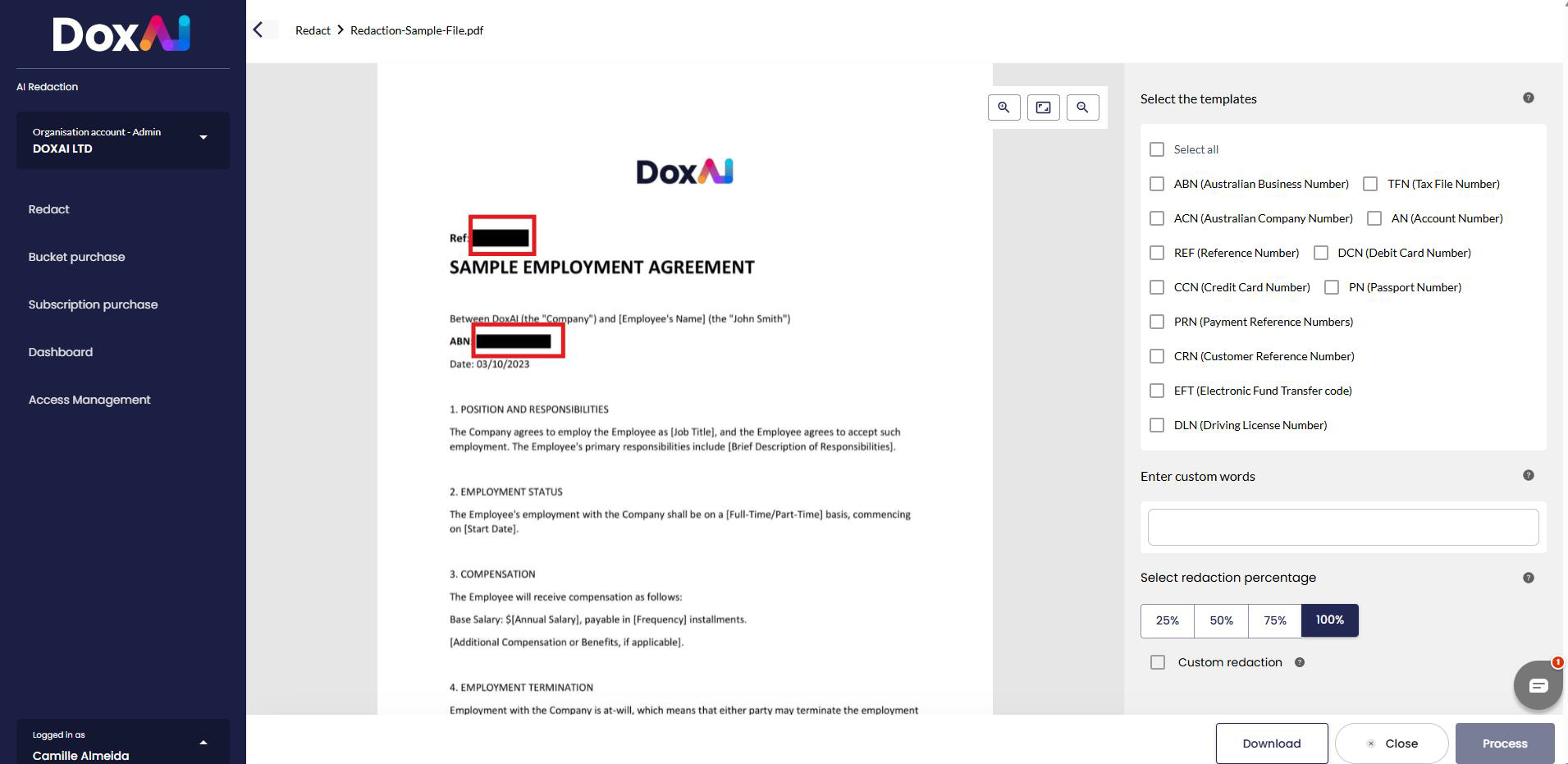
- The user is now directed to the AI Redaction service screen. In this scenario, the user wanted to redact “PA129876” and “51 824 753 556.” Both pieces of information have been successfully redacted.
Was this article helpful?
That’s Great!
Thank you for your feedback
Sorry! We couldn't be helpful
Thank you for your feedback
Feedback sent
We appreciate your effort and will try to fix the article