To keep documents organised, the user can create folders. On the document upload screen, the user clicks on "Create new folder".
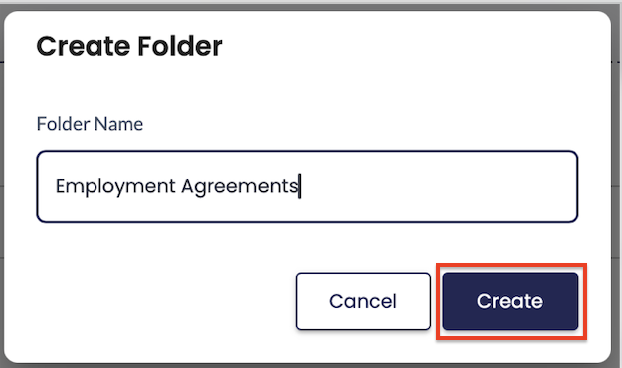
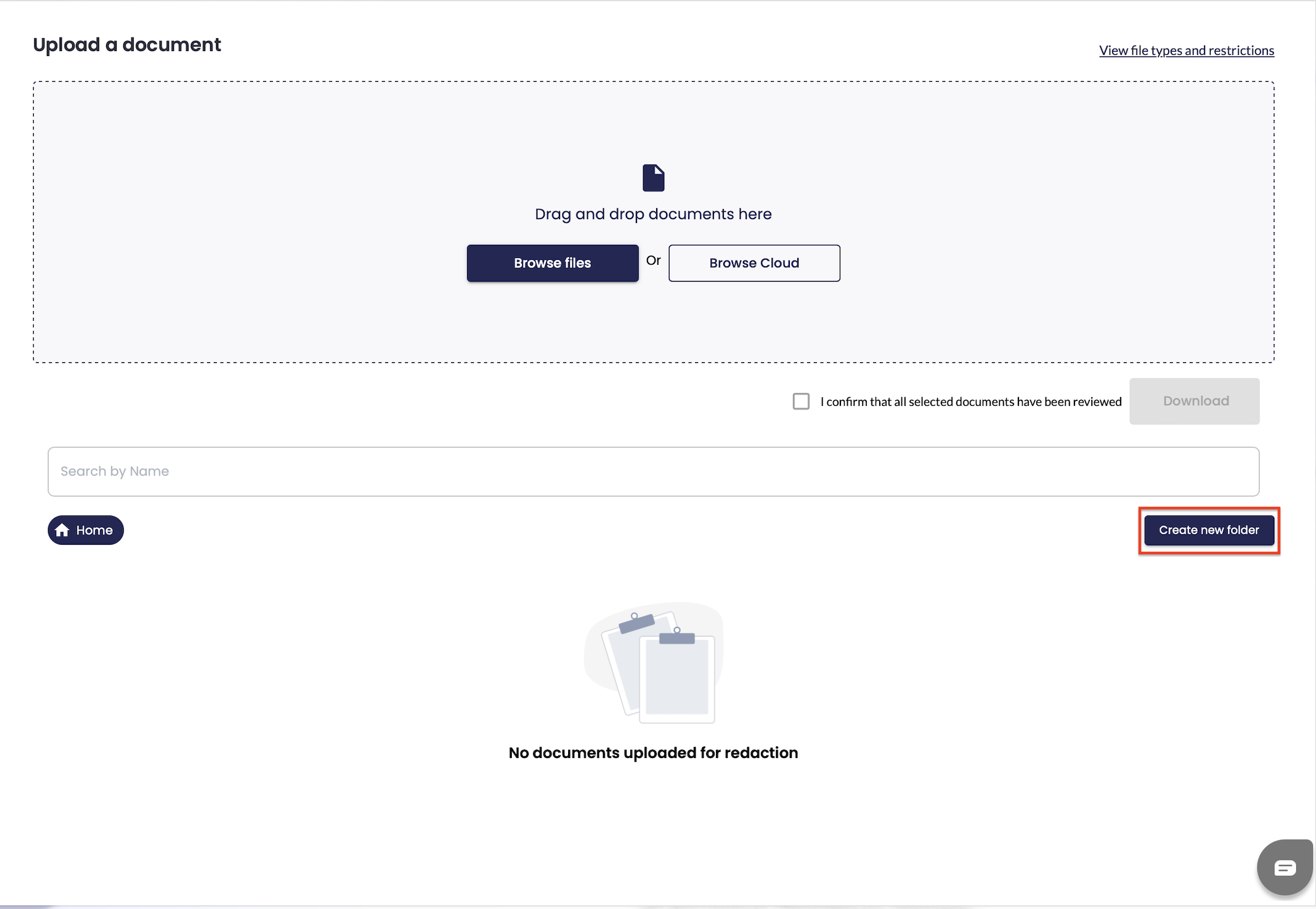 The user enters a name for the folder and clicks on "Create".
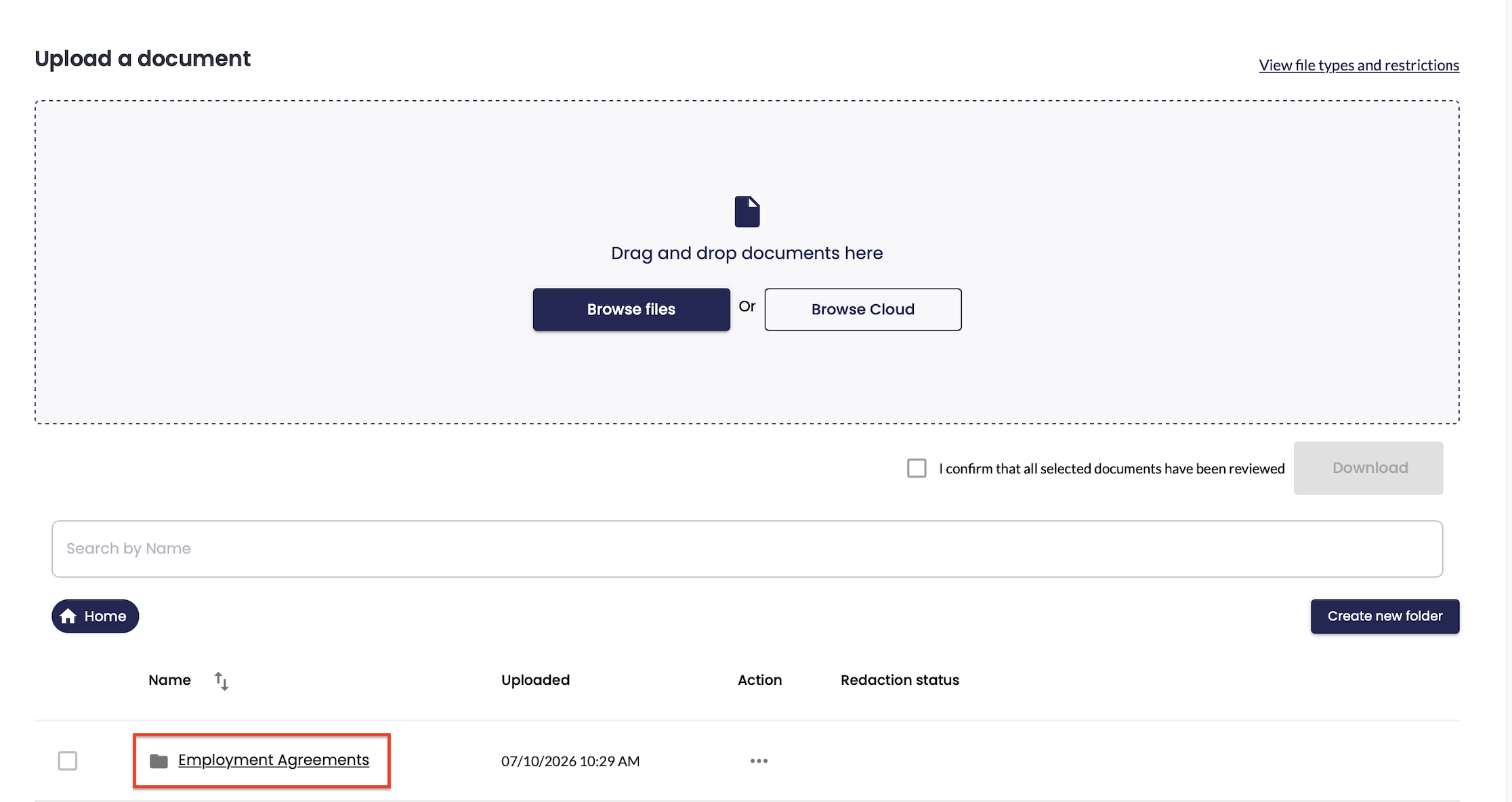
The new folder will appear on the list. To open the folder, the user clicks on the folder name.
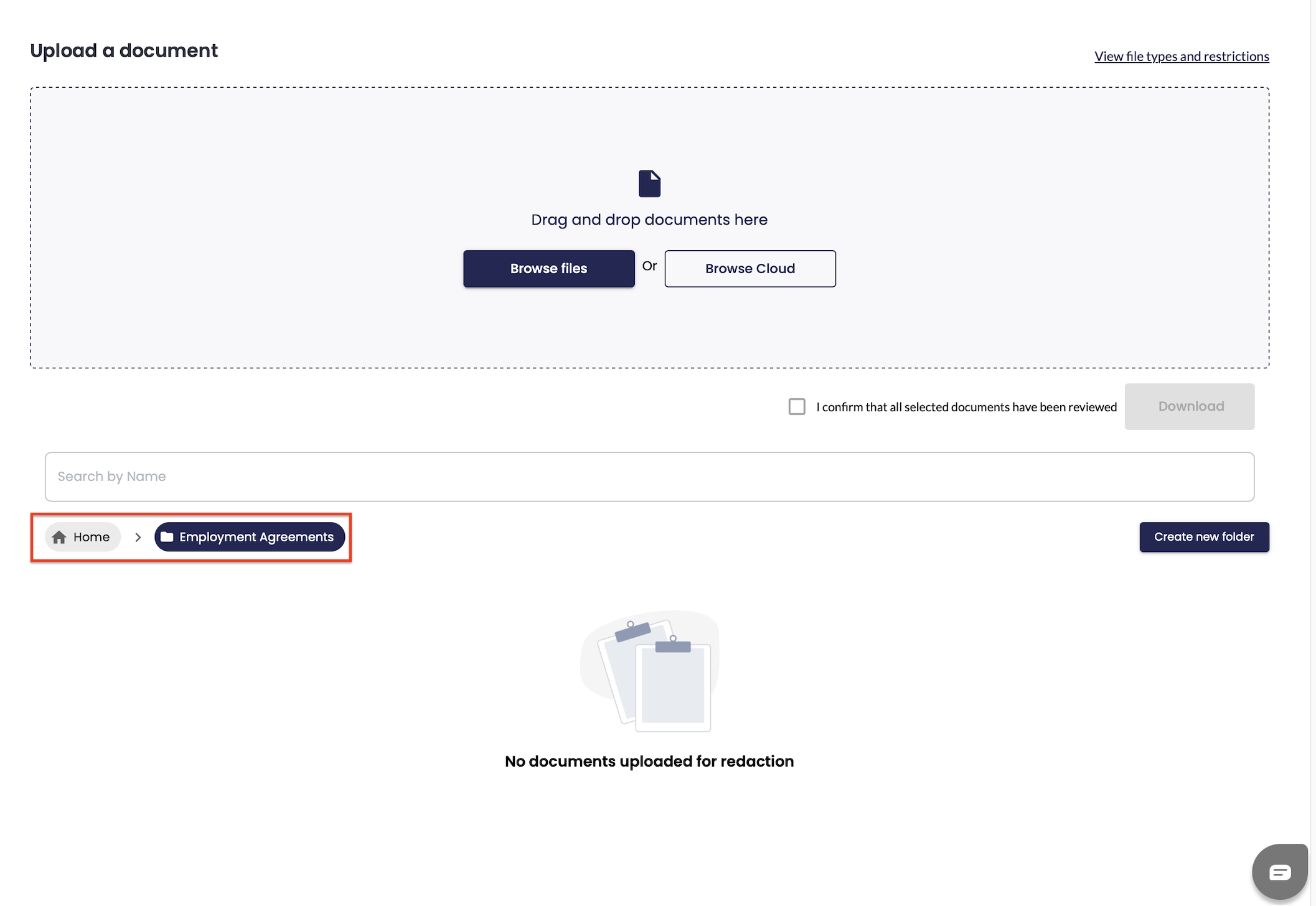
Once the folder is open, its name will appear next to "Home" above the list. The user can initiate the redaction of document directly from the folder. To return to the main view, the user clicks Home.
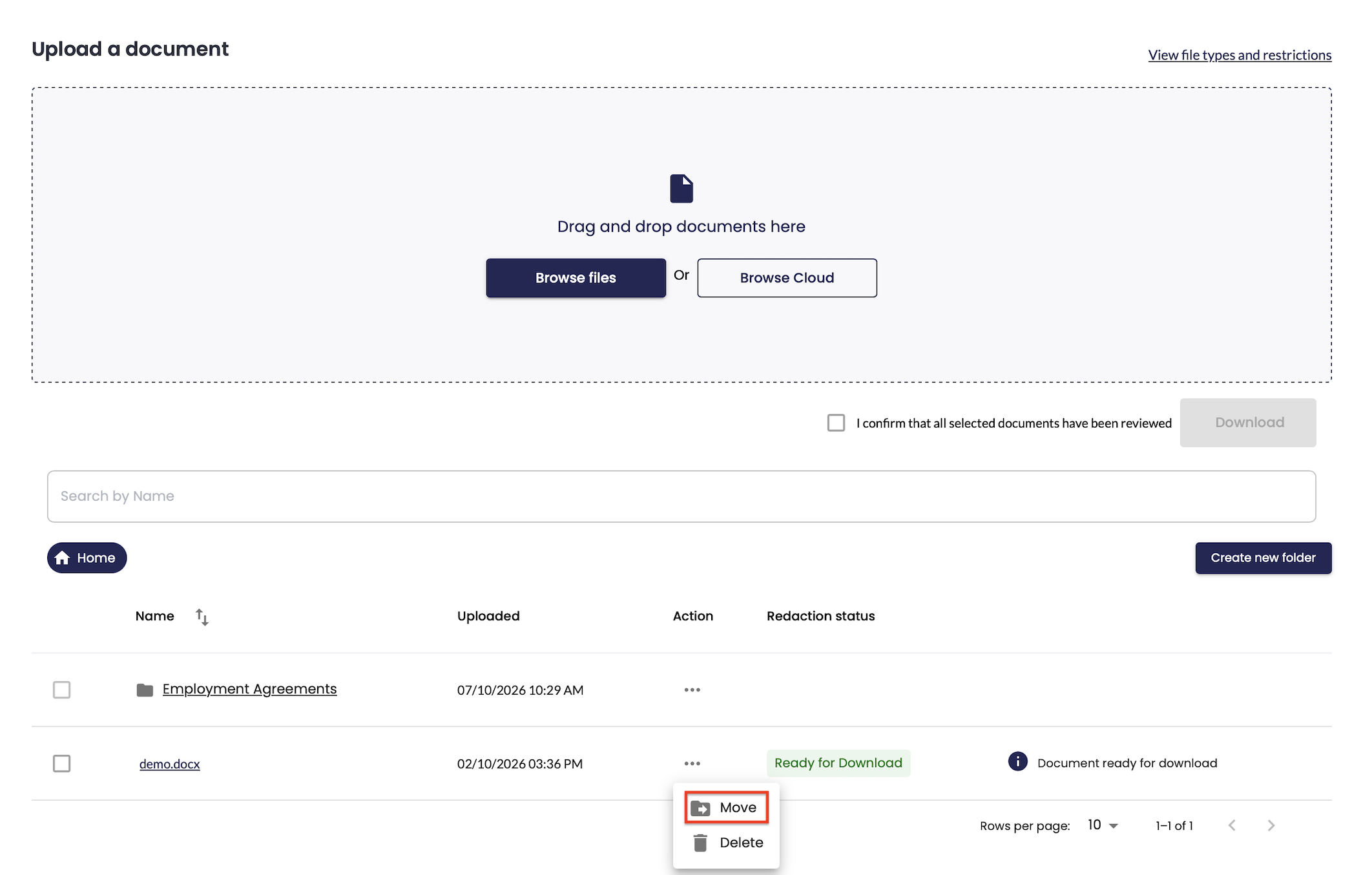
To move an existing document into a folder, the user clicks on the "..." icon in the "Action" column next to the document and selects "Move".
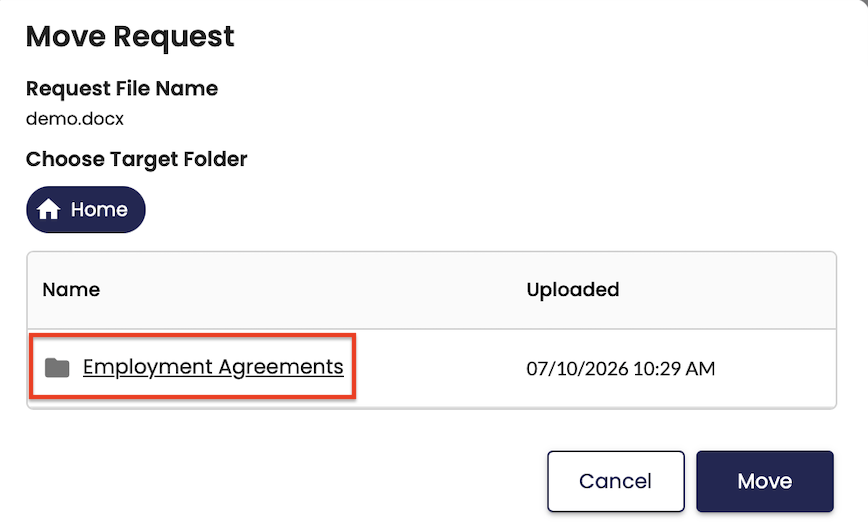
Under "Choose Target Folder", the user clicks on the folder the document should be moved to.
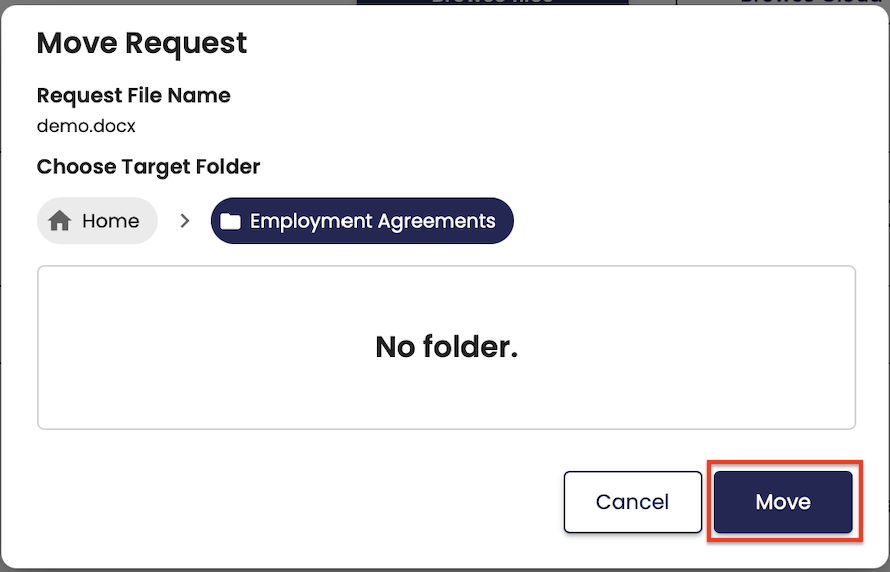
The selected folder will appear at the top of the window. If the folder contains other folders, the user can keep clicking to go deeper. Once the correct folder is selected, the user clicks "Move".
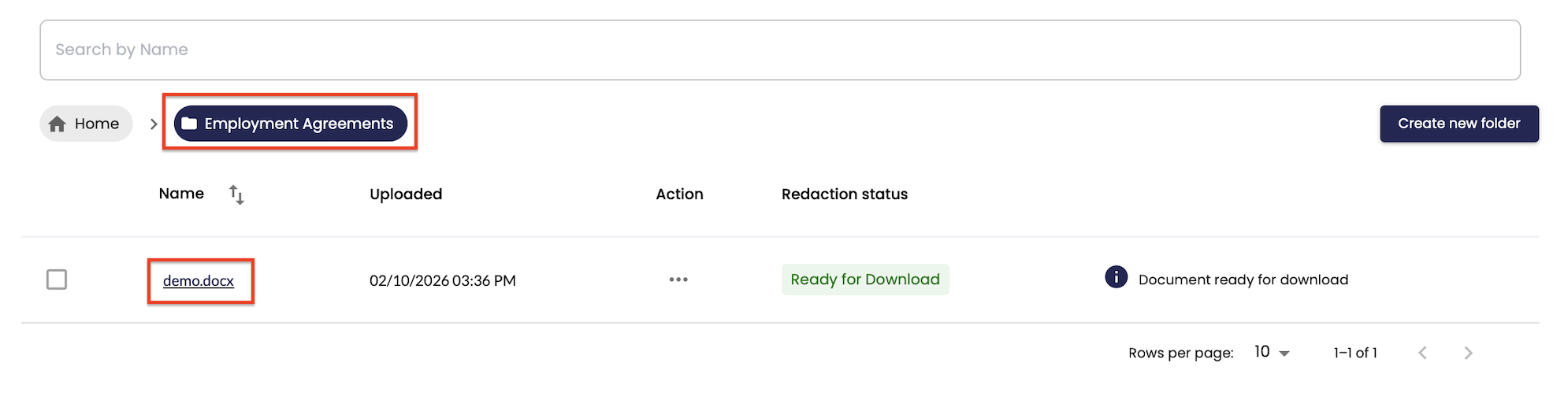
The document is now saved in the selected folder. To view it, the user opens the folder and clicks on the file name of the document.
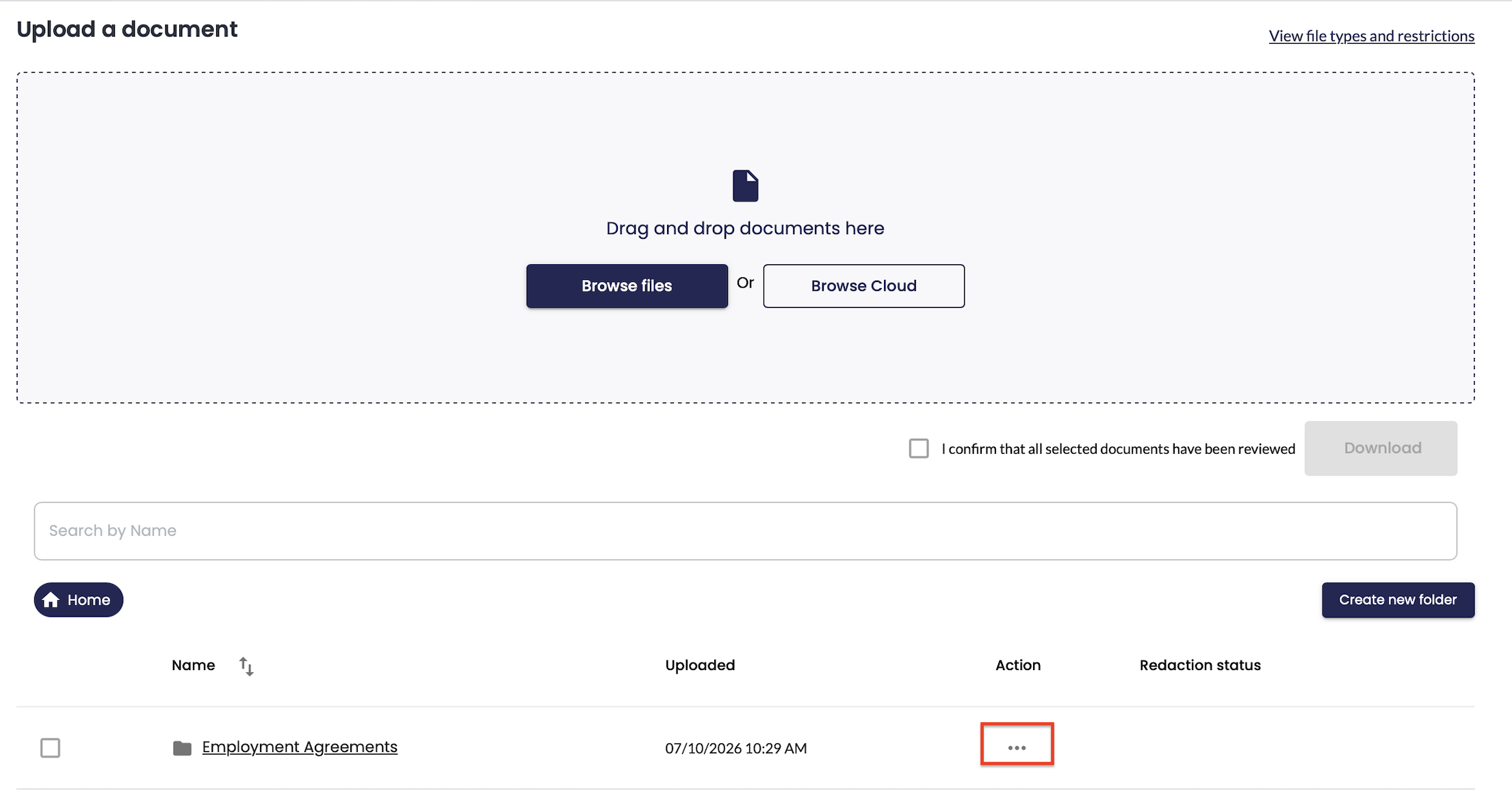
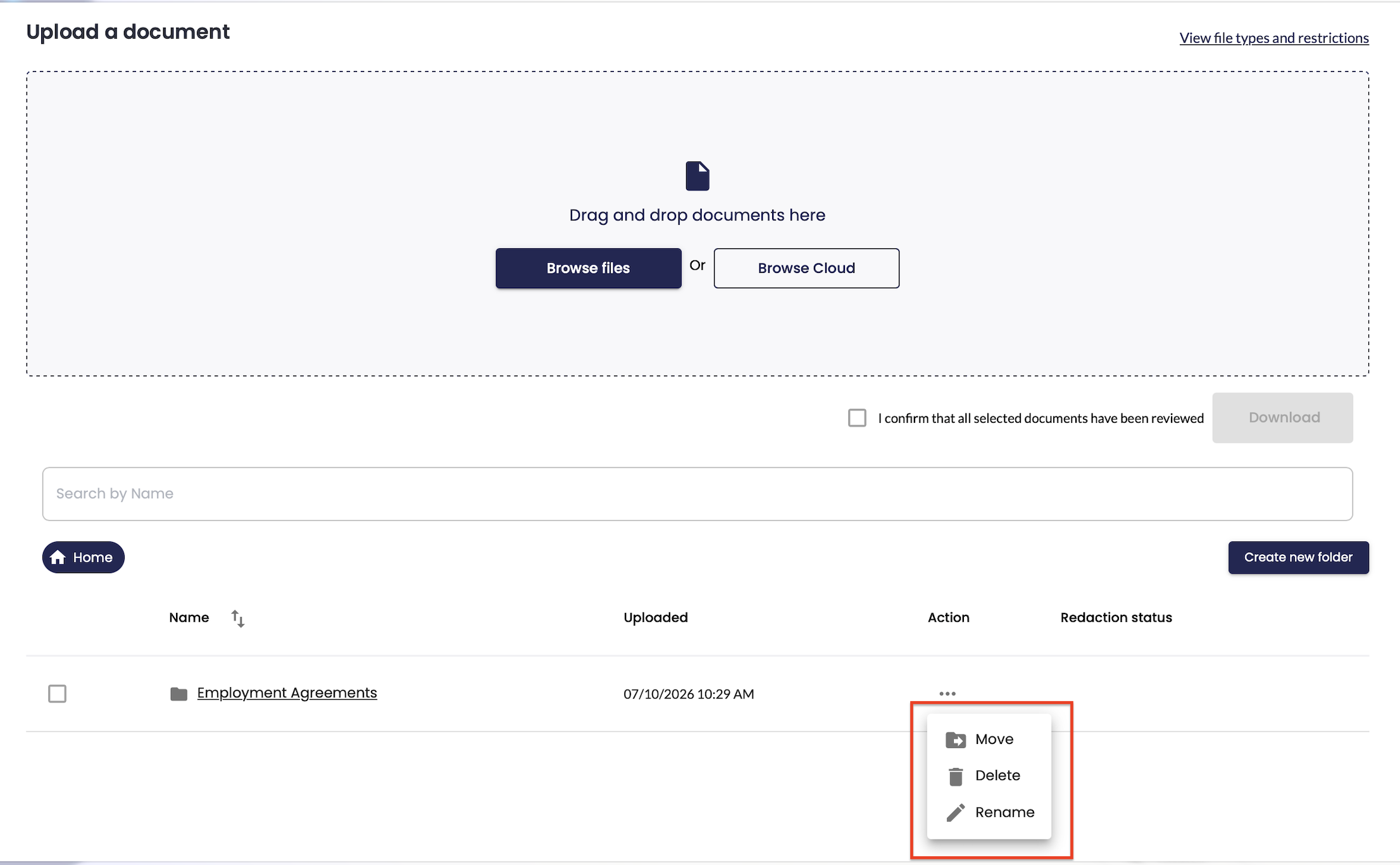
 To rename, move or delete a folder, the user clicks on the "..." icon in the "Action" column next to the folder and selects one of the following options:
"Rename": to give the folder a new name
"Move": to place the folder inside another folder
"Delete": to remove the folder (including all files inside the folder)
Was this article helpful?
That’s Great!
Thank you for your feedback
Sorry! We couldn't be helpful
Thank you for your feedback
Feedback sent
We appreciate your effort and will try to fix the article