Field mapping connects the values in your JSON data to the corresponding fields in the PDF form.
Mapping Fields
- Open the template you want to configure.
- Select a field in the PDF preview.
- Locate the required value in the JSON tree.
- Click Map to associate the selected JSON value with the PDF field.
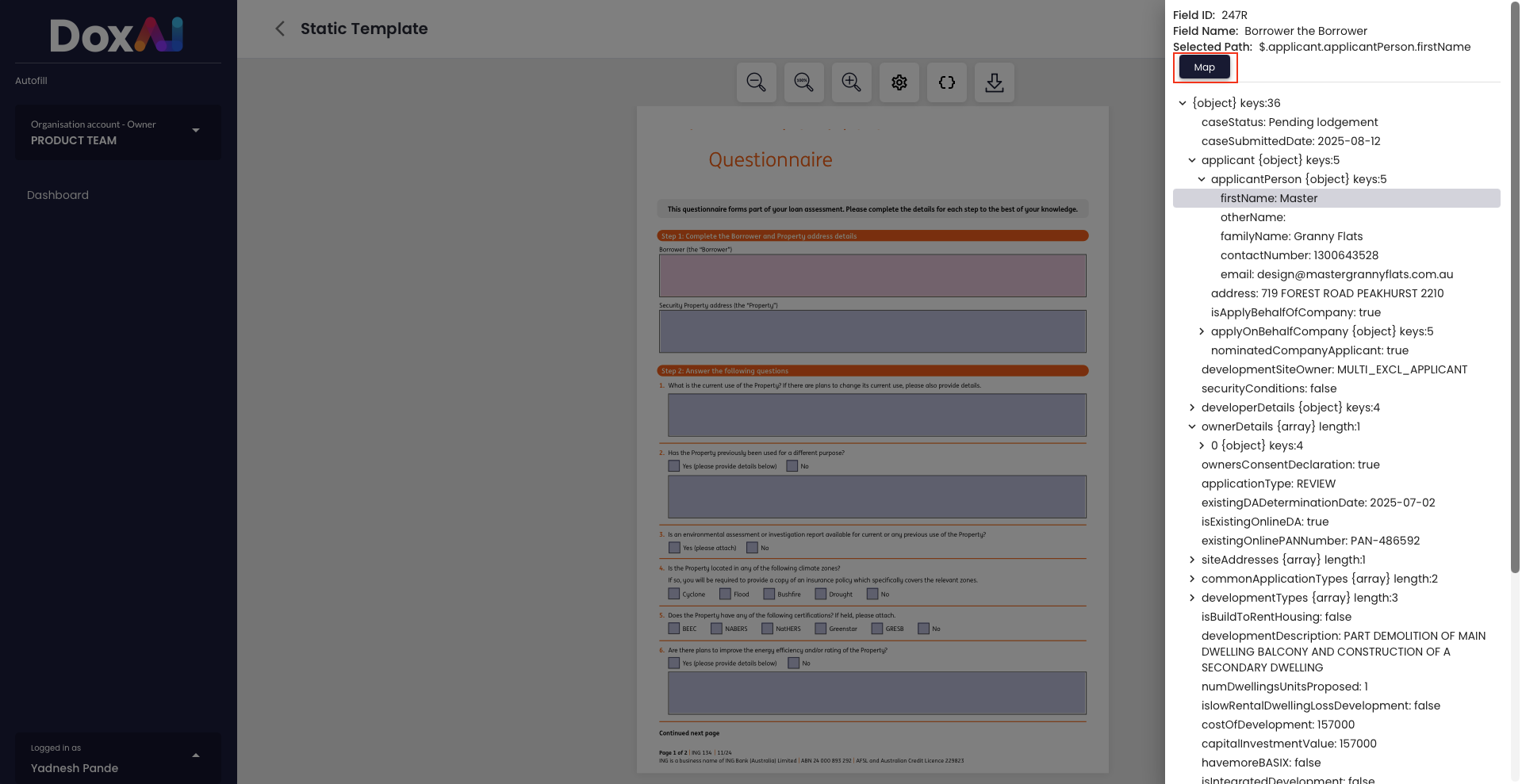
- Repeat the process until all required fields have been mapped.
- Click Save to update the template.
Notes
- Each PDF field should be mapped to the appropriate JSON value.
- Mapped fields will automatically be populated when the template is used through the Autofill API.
- If duplicate PDF fields are detected, refer to Resolving Duplicate Fields before saving the template.
Was this article helpful?
That’s Great!
Thank you for your feedback
Sorry! We couldn't be helpful
Thank you for your feedback
Feedback sent
We appreciate your effort and will try to fix the article