Templates define how JSON data is mapped to PDF form fields. Once created, the same template can be reused to
generate multiple completed PDFs.
Create a New Template
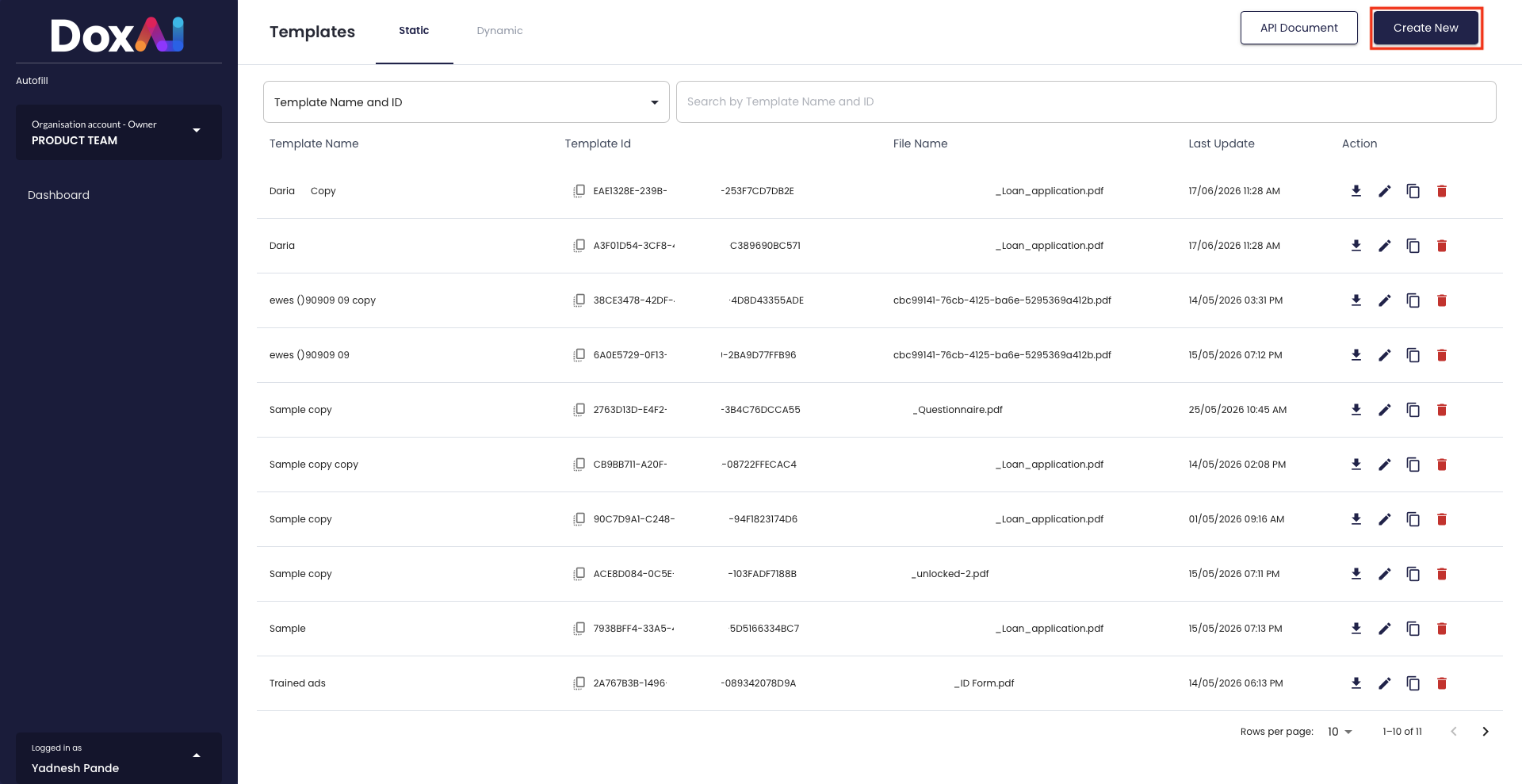
- Navigate to Autofill > Templates.
- Click Create New.
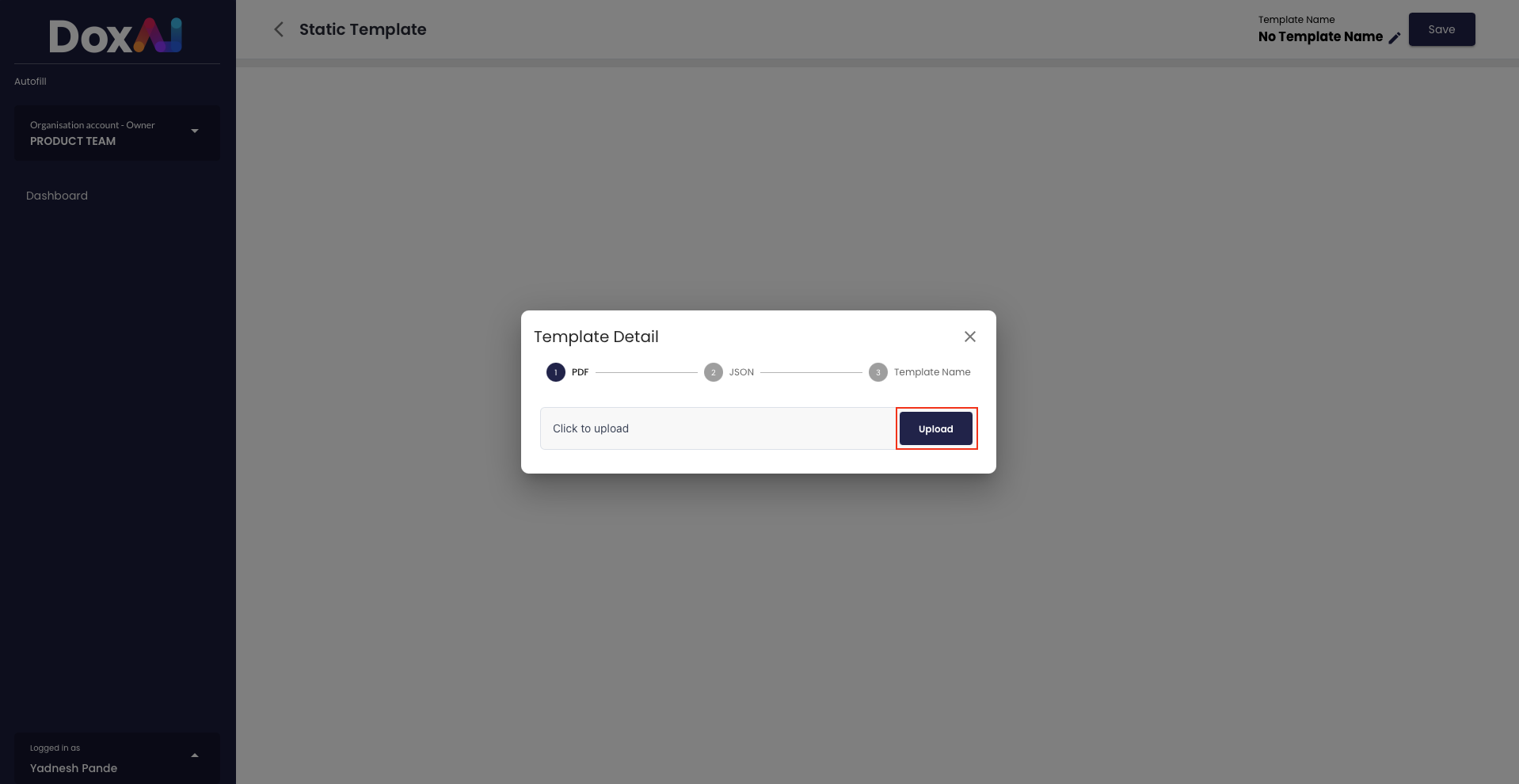
- Upload a supported smart fillable PDF form and click Upload.
- Provide a sample JSON by either:
- Uploading a JSON file, or
- Pasting valid JSON into the editor.
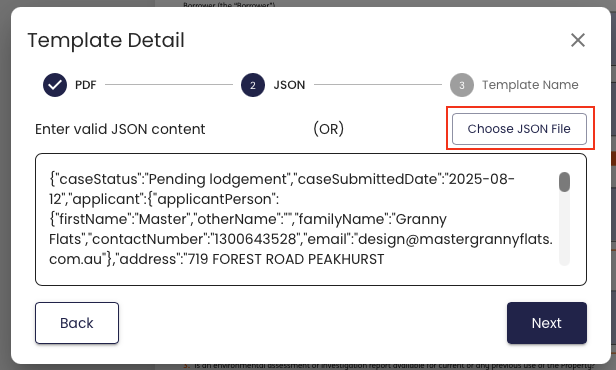
- Click Next.
- Enter a Template Name.
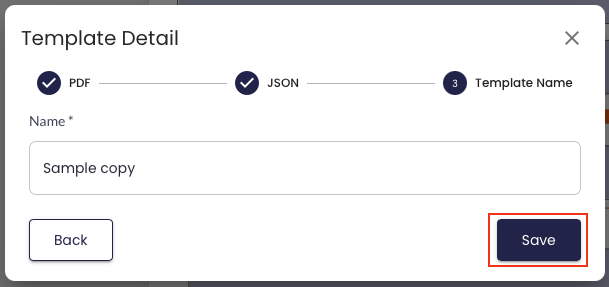
- Click Save.
Your template is now ready for field mapping.
Notes
- Only smart fillable PDF forms can be used.
- The sample JSON should represent the structure that will be sent to the Autofill API.
- After saving the template, proceed to Mapping JSON Fields to configure the field mappings.
Was this article helpful?
That’s Great!
Thank you for your feedback
Sorry! We couldn't be helpful
Thank you for your feedback
Feedback sent
We appreciate your effort and will try to fix the article